Problem: A task is being executed when you expect it to be replayed from the cache.
Check 1: Check if your task is marked as cacheable:
Section titled “Check 1: Check if your task is marked as cacheable:”- Check the task has a "Cacheable" label in the Project Details View. You can do so by running
nx show project <project-name> --webor by checking it in Nx Console. - Check the target configuration has
"cache": trueset, either in the project'sproject.jsonor innx.json#targetDefaults.
Check 2: Check if the output of your task is changing the inputs of your task
Section titled “Check 2: Check if the output of your task is changing the inputs of your task”- Check the
inputsandnamedInputsdefined in the project configuration and rootnx.json. Theinputscontrol whether a task will execute or replay from cache. - Check to see if there is an output file that is not being captured by the
outputsfor the task. Theoutputsproperty only controls what files are replayed from the cache, it doesn't dictate whether the cache is replayed, but an unaccounted output file could be modifying one of the inputs of the task. - To check your input glob patterns file-by-file, you can get a list of all the files associated with each project by running
nx graph --file=output.jsonor by clicking on a task in the task graph in thenx graphvisualization.
Check 3: Use the Nx Cloud troubleshooting tools
Section titled “Check 3: Use the Nx Cloud troubleshooting tools”- Make sure your repo is connected to Nx Cloud
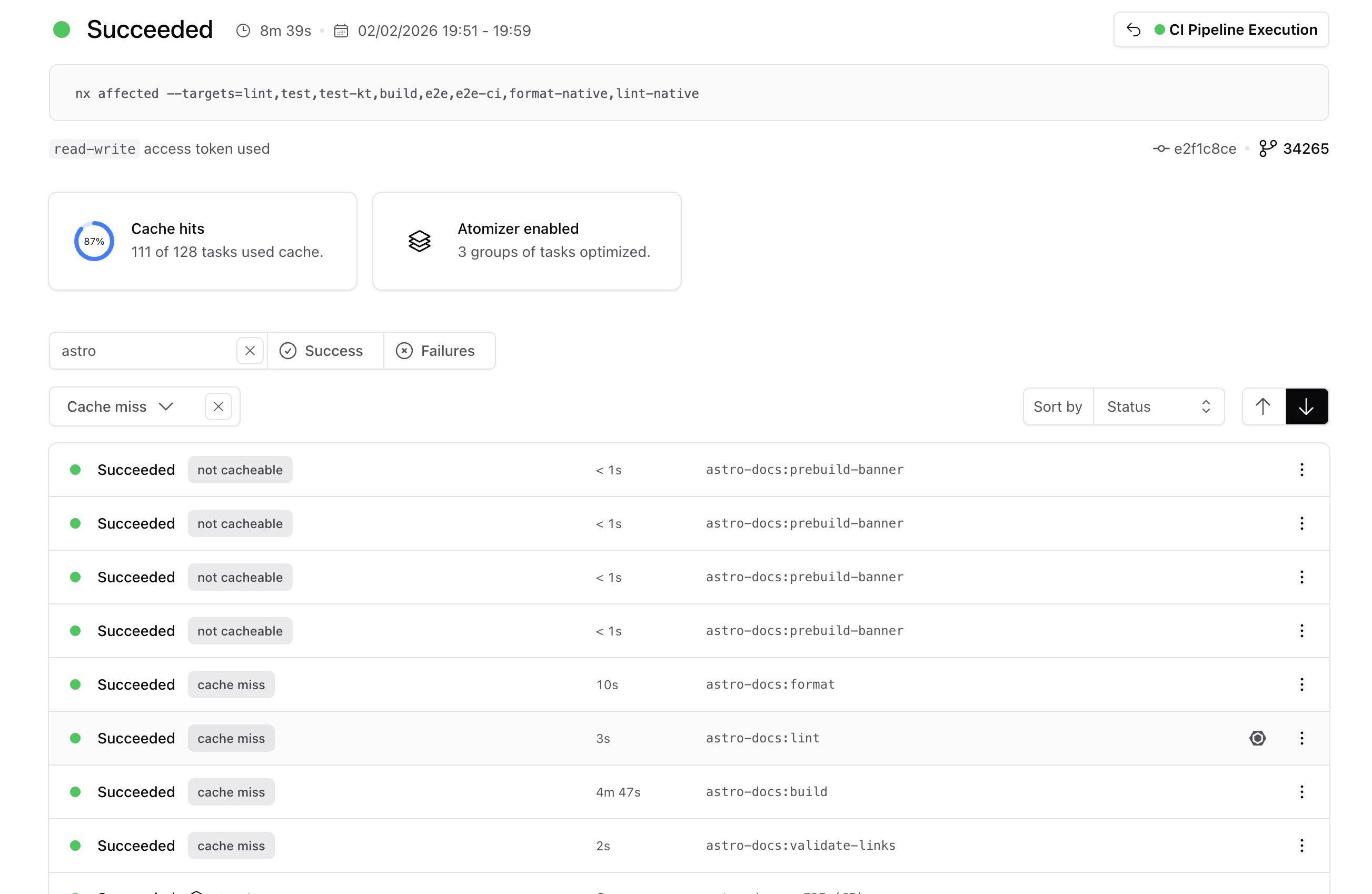
- Click on the run details link that is printed in the terminal after you run a task. You can search for and filter tasks by cache status to find the task with the cache miss you want to investigate.
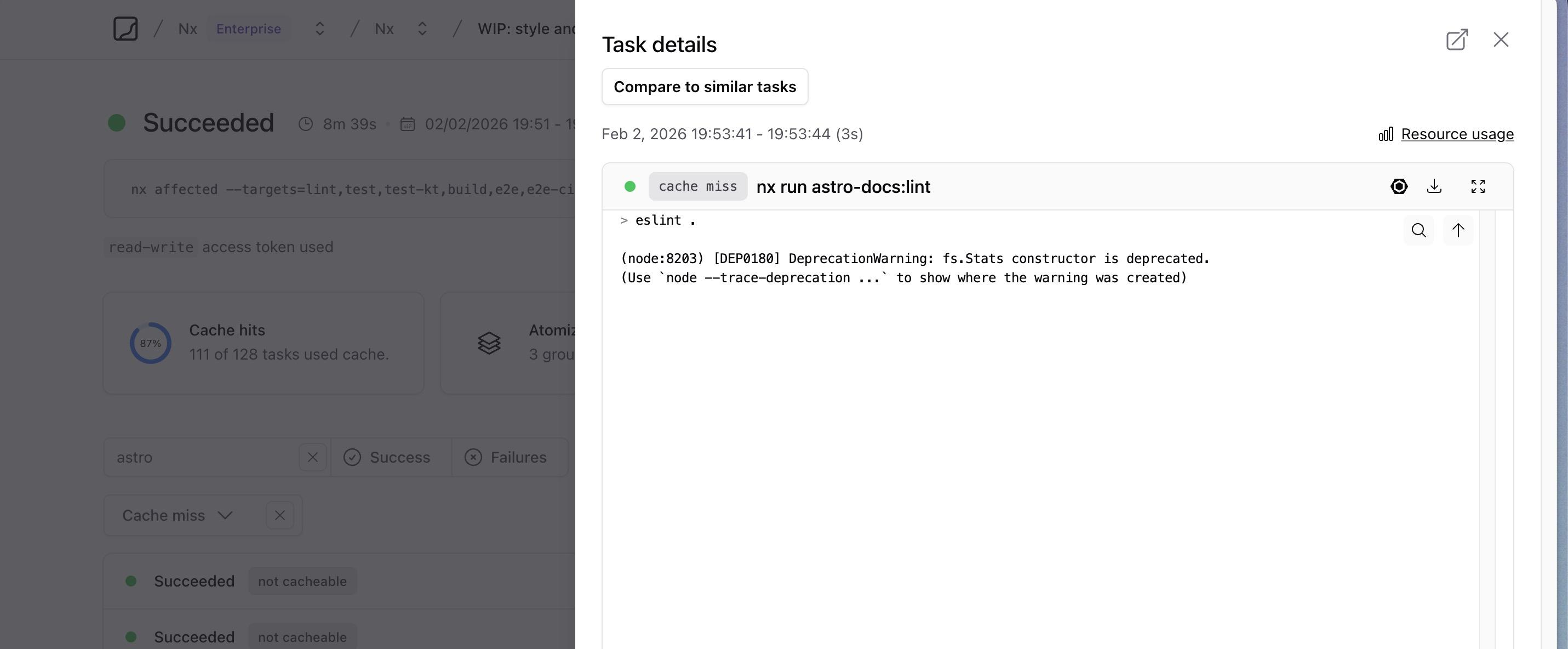
- Click on the task with the cache miss to open the task details panel, then click the "Compare to similar tasks" button.
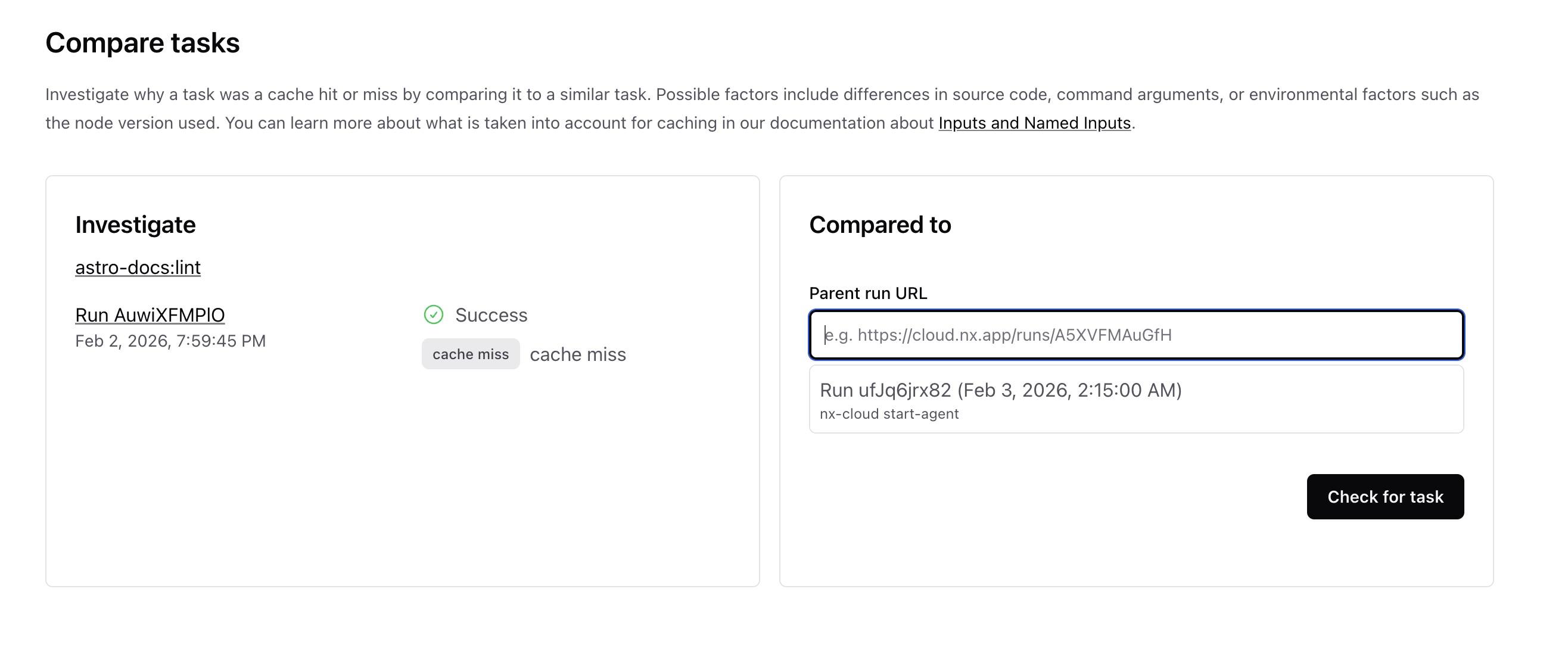
- Select one of the similar tasks from the list in the "Compared to" section, or paste a run URL to compare against a specific run.
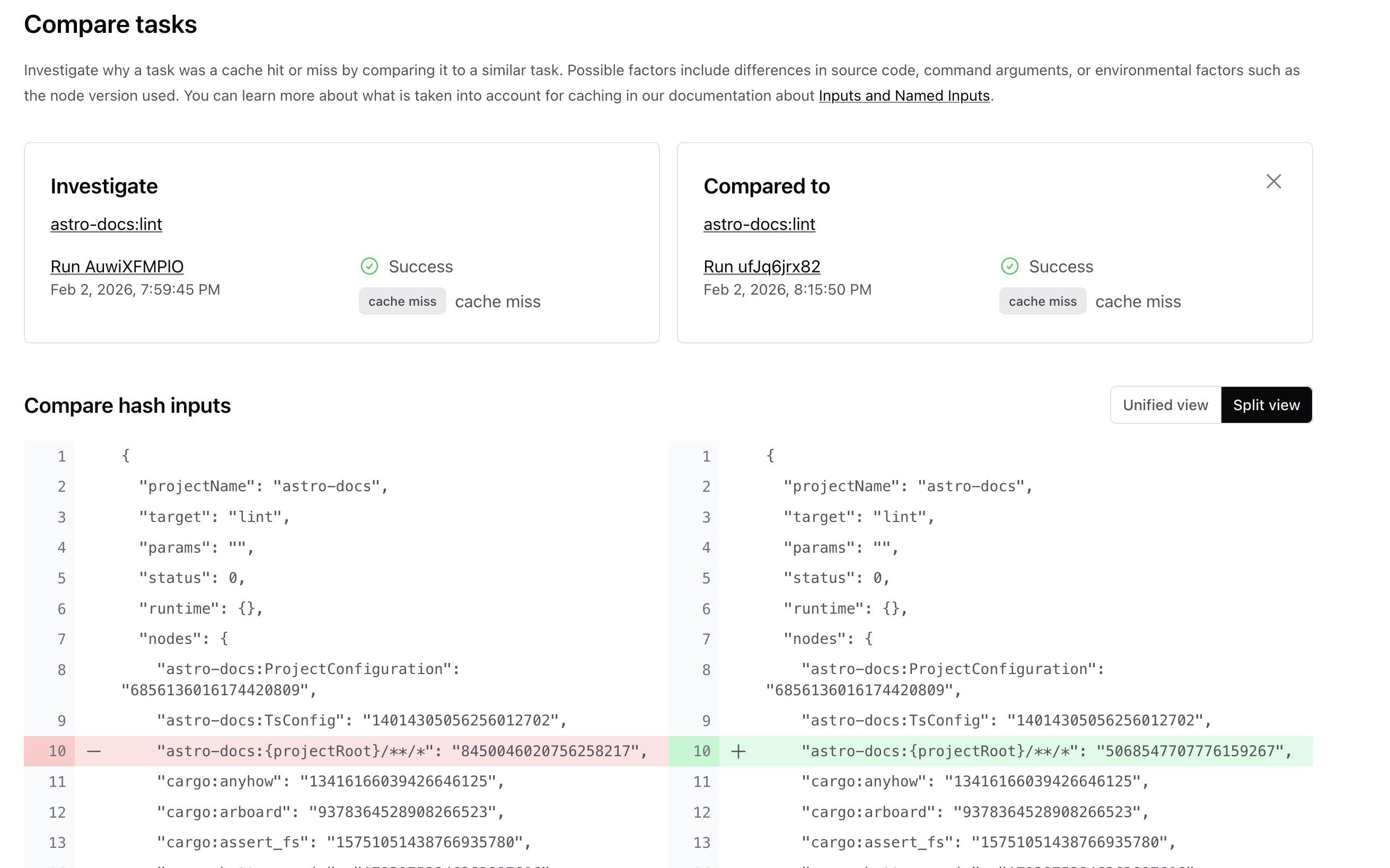
- Nx Cloud will compare the hash inputs of both tasks and highlight all the differences, making it easy to identify which inputs changed.