Whether you have one project or hundreds in a monorepo, Nx provides a task runner that allows you to:
- easily run multiple targets for multiple projects in parallel
- define task pipelines to run tasks in the correct order
- only run tasks for projects affected by a given change
- speed up task execution with caching
Define tasks
Section titled “Define tasks”Nx tasks can be created from existing package.json scripts, inferred from tooling configuration files, or defined in a project.json file. Nx combines these three sources to determine the tasks for a particular project. Whichever source a project uses, Nx reads it as it stands, so a workspace can run through Nx without adding task configuration.
{ "name": "mylib", "scripts": { "build": "tsc -p tsconfig.lib.json", "test": "jest" }}{ "root": "libs/mylib", "targets": { "build": { "command": "tsc -p tsconfig.lib.json" }, "test": { "command": "jest", "options": {/* ... */} } }}Nx plugins can detect your tooling configuration files (e.g. vite.config.ts or .eslintrc.json) and automatically configure runnable tasks including Nx cache. For example, the @nx/jest plugin will automatically create a test task for a project that uses Jest. The names can be configured in the nx.json file:
{ ... "plugins": [ { "plugin": "@nx/vite/plugin", "options": { "buildTargetName": "build", "serveTargetName": "serve", "previewTargetName": "preview", "serveStaticTargetName": "serve-static" } }, { "plugin": "@nx/eslint/plugin", "options": { "targetName": "lint" } }, { "plugin": "@nx/jest/plugin", "options": { "targetName": "test" } } ], ...}The project configuration docs has the details for all the available configuration options.
Inferred tasks
Section titled “Inferred tasks”Your tools already describe how they run. A vite.config.ts file defines where the build output goes. Rather than asking you to repeat that information, Nx plugins read the tool configuration and create tasks for you. The @nx/vite plugin, for example, detects vite.config.ts files and infers tasks such as build, dev, and preview with the correct command, cache settings, inputs, outputs, and task dependencies.
To see every task Nx detected for a project, and where each setting came from, show the project details:
nx show project my-projectWhen a plugin infers settings you want to change, override them. Nx merges task configuration from three sources, from lowest to highest precedence:
- Task configuration inferred by plugins registered in
nx.json. targetDefaultsinnx.json.- The project's own configuration in
package.jsonorproject.json.
To move an older workspace onto inferred tasks, follow the Migrate to Inferred Tasks guide.
Run tasks
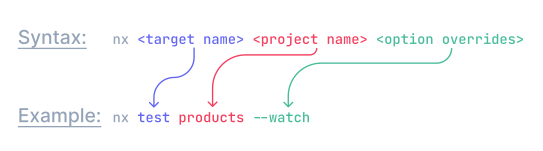
Section titled “Run tasks”Nx uses the following syntax:
Run a single task
Section titled “Run a single task”To run the test task for the header project run this command:
npx nx test headerRun tasks for multiple projects
Section titled “Run tasks for multiple projects”You can use the run-many command to run a task for multiple projects. Here are a couple of examples.
Run the build task for all projects in the repo:
npx nx run-many -t buildRun the build, lint and test task for all projects in the repo:
npx nx run-many -t build lint testRun the build, lint, and test tasks only on the header and footer projects:
npx nx run-many -t build lint test -p header footerNx parallelizes these tasks, ensuring they run in the correct order based on their dependencies and task pipeline configuration. You can also control how many tasks run in parallel at once.
Learn more about the run-many command.
Run tasks on projects affected by a PR
Section titled “Run tasks on projects affected by a PR”You can also run a command for all the projects affected by your PR like this:
npx nx affected -t testLearn more about the affected command here.
The task graph
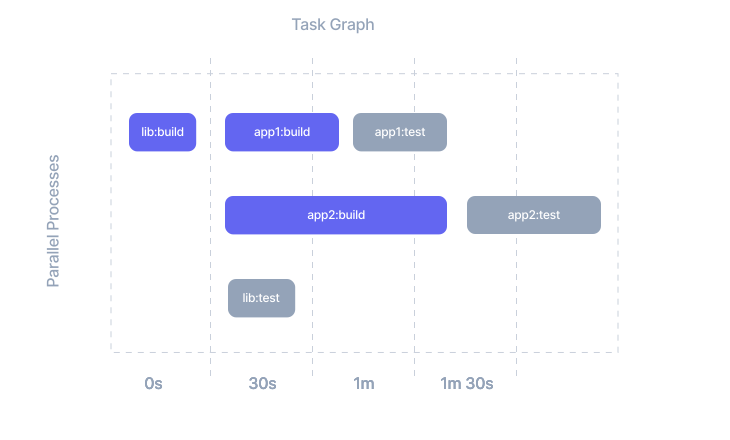
Section titled “The task graph”Nx creates a task graph whenever you run tasks. Each node is a task, which is a specific target invoked for a project, such as myapp:build. Edges represent the dependencies between tasks.
Nx uses the project graph to figure out which tasks exist, but the task graph isn't a mirror of the project graph. In this workspace, app1 and app2 depend on lib:
Running nx run-many -t test -p app1 app2 lib creates a task graph with three disconnected nodes:
Even though the apps depend on lib, testing app1 doesn't depend on testing lib, so the three tasks run in parallel. A task pipeline adds the edges when order matters, such as building lib before app1. Nx then runs each task once its dependencies finish, and runs independent tasks, even different targets, at the same time:
Defining a task pipeline
Section titled “Defining a task pipeline”It is pretty common to have dependencies between tasks, requiring one task to be run before another. For example, you might want to run the build target on the header project before running the build target on the app project.
Nx can automatically detect the dependencies between projects (see project graph).
However, you need to specify for which targets this ordering is important. In the following example we are telling Nx that before running the build target it needs to run the build target on all the projects the current project depends on:
{ ... "targetDefaults": { "build": { "dependsOn": ["^build"] } }}This means that if we run nx build myreactapp, Nx will first execute build on shared-ui and feat-products before running build on myreactapp.
The caret in ^build means "run the target on project dependencies." Without the caret, a target name refers to a target on the same project:
{ "targetDefaults": { "build": { "dependsOn": ["^build", "prebuild"] }, "test": { "dependsOn": ["build"] } }}With this configuration, nx test myproj builds the task graph like this:
- Nx adds
myproj:test. - Because
testdepends onbuild, Nx addsmyproj:build. - Because
builddepends onprebuild, Nx addsmyproj:prebuild. - The
^buildentry addsbuildtasks for the projectsmyprojdepends on. - Nx runs each task as soon as its dependencies complete, not after every build finishes.
You can define these task dependencies globally for your workspace in nx.json or individually in each project's package.json or project.json file. For all dependsOn forms and project-specific examples, see how to configure a task pipeline.
Reduce repetitive configuration
Section titled “Reduce repetitive configuration”Learn more about leveraging targetDefaults to reduce repetitive configuration in the dedicated recipe.
Run root-level tasks
Section titled “Run root-level tasks”Sometimes, you need tasks that apply to the entire codebase rather than a single project. To still benefit from caching, you can run these tasks through the "Nx pipeline". Define them in the root-level package.json or project.json as follows:
{ "name": "myorg", "scripts": { "docs": "node ./generateDocsSite.js" }, "nx": {}}Note the
nx: {}property on thepackage.json. This is necessary to inform Nx about this root-level project. The property can also be expanded to specify cache inputs and outputs.
If you want Nx to cache the task, but prefer to use npm (or pnpm/yarn) to run the script (i.e. npm run docs) you can use the nx exec command:
{ "name": "myorg", "scripts": { "docs": "nx exec -- node ./generateDocsSite.js" }, "nx": {}}{ "name": "myorg", ... "targets": { "docs": { "command": "node ./generateDocsSite.js" } }}To invoke the task, use:
npx nx docsLearn more about root-level tasks on our dedicated recipe page.