Nx Cloud Self-Healing CI is an AI-powered system that automatically detects, analyzes, and proposes fixes for CI failures, offering several key advantages:
- Improves Time to Green (TTG): Automatically proposes fixes when tasks fail, significantly reducing the time to get your PR merge-ready. No more babysitting PRs.
- Keeps You in the Flow: Get notified about failed PRs and proposed fixes via PR/MR comments or directly in your editor with Nx Console (VS Code, Cursor, or WebStorm). Review, approve, and keep working while AI handles the rest.
- Leverages Deep Context: AI agents understand your workspace structure, project relationships, and build configurations through the Nx project graph and metadata.
- Non-Invasive Integration: Works with your existing CI provider without overhauling your current setup.
Enable self-healing CI
Section titled “Enable self-healing CI”To enable Self-Healing CI in your workspace, you'll need to connect to Nx Cloud and configure your CI pipeline.
If you haven't already connected to Nx Cloud, run the following command:
npx nx@latest connectConnect from your browserSign in to Nx Cloud and connect your repository without the CLI
For the full pipeline walkthrough, see Setting Up CI.
Next, check the Nx Cloud workspace settings in the Nx Cloud web application to ensure that "Self-Healing CI" is enabled.
Configure your CI pipeline
Section titled “Configure your CI pipeline”Add a step to your CI configuration's "main" job that runs the fix-ci command. It doesn't matter exactly what this job is called, it is whichever job in your config where you invoke nx start-nx-agents and kick off your nx run-many or nx affected commands.
By default, your CI provider will only run the step if the previous steps succeeded, but by definition we want to run Self-Healing CI even when previous steps fail. Therefore make sure you are using a condition of if: always() or equivalent to ensure it runs even when previous steps fail:
These examples distribute tasks across Nx Agents, so they also need a .nx/ci-config.yaml file at the workspace root. See the CI configuration file reference for every key you can set.
dte: distribute-on: 3 linux-large-jslifecycle: stop-after: - lint - test - buildname: CI
jobs: main: runs-on: ubuntu-latest steps: # Your existing steps which check out the repo, start-nx-agents, install # dependencies, etc. # These are just illustrative examples... - uses: actions/checkout@v7 - uses: actions/setup-node@v6 - run: npx nx start-nx-agents - run: npm ci - run: npx nx affected -t lint test build
# NEW: Add this step at the end of your job - run: npx nx fix-ci if: always() # IMPORTANT: Always runstages: - build
main: stage: build script: # Your existing steps which check out the repo, start-nx-agents, install # dependencies, etc. - npx nx start-nx-agents - npm ci - npx nx affected -t lint test build # NEW: Add this section at the end of your job if you don't # already have an after_script section after_script: # IMPORTANT: after_script runs regardless of job success/failure # so it's like if: always() on GitHub - npx nx fix-citrigger: - main
pool: vmImage: 'ubuntu-latest'
steps: # Your existing steps which check out the repo, start-nx-agents, install # dependencies, etc. # These are just illustrative examples... - task: NodeTool@0 inputs: versionSpec: '22.x' - script: npx nx start-nx-agents - script: npm ci - script: npx nx affected -t lint test build
# NEW: Add this step at the end of your job - script: npx nx fix-ci condition: always() # IMPORTANT: Always runimage: node:22
pipelines: pull-requests: '**': - step: name: CI script: # Your existing steps which start-nx-agents, install # dependencies, etc. # These are just illustrative examples... - npx nx start-nx-agents - npm ci - npx nx affected -t lint test build after-script: # NEW: Add this section at the end of your step # IMPORTANT: after-script runs regardless of step success/failure # so it's like if: always() on GitHub - npx nx fix-ciNOTE: If all tasks succeed then the
fix-cicommand becomes a no-op automatically, so that is why "always" is recommended.
Configuring self-healing CI
Section titled “Configuring self-healing CI”Self-Healing CI configuration is primarily managed through your Nx Cloud workspace settings in the Nx Cloud dashboard. This provides a centralized, auditable way to control the feature's behavior.
General settings
Section titled “General settings”| Setting | Description |
|---|---|
| Enable Self-Healing CI | Enable Self-Healing CI for PRs in the current workspace |
| GitHub PR comments | Show Self-Healing CI feedback and actions within GitHub PR comments (in addition to the Nx Cloud UI) |
| Auto-retry flaky tasks | Automatically re-run tasks that are detected as flaky to improve CI reliability. This works by pushing an empty commit to the PR branch |
| Allow public link access | Allow anyone with access to the link the ability to apply or reject a suggested change (not recommended unless absolutely necessary) |
| Draft PR handling | Allow Self-Healing CI to create fixes for draft PRs |
| Protected branch prefixes | Configure branch prefixes for which fixes should not be generated (e.g., release/ will match release/v1.0). The default branch and branches named main, master, trunk, dev, stable, or canary will never have fixes generated |
Eligible tasks
Section titled “Eligible tasks”Control which failing tasks Nx Cloud will actively try and fix for pull request CI pipeline executions.
You can choose between two modes:
| Mode | Description |
|---|---|
| Any failing task | Any task that fails during PR CI pipeline executions is eligible (recommended) |
| Specific patterns | Limit Self-Healing CI to failing PR tasks that match the specified glob patterns |
You can also specify Never fix patterns to exclude certain tasks from ever being fixed by Self-Healing CI. For example, *e2e* would exclude all e2e-related tasks.
Auto-apply verified code changes
Section titled “Auto-apply verified code changes”Automatically commit code change suggestions to the PR branch when ALL of these are true:
- The task matches the glob patterns configured below
- The AI agent is highly confident that the suggested code change will fix the failing task
- The suggestion has been explicitly verified to fix the failing task
Deterministic Nx checks
Section titled “Deterministic Nx checks”A built-in preset that auto-fixes failures from nx format:check, nx sync:check, and nx conformance:check commands. The AI agent has special knowledge of these commands and will invoke the corresponding "writable" version to fix the issue (e.g., nx format). You can safely enable this preset even if you only use a subset of these commands.
Additional include patterns
Section titled “Additional include patterns”Tasks matching these patterns will also have high-confidence, verified code changes auto-applied. For example: *build*, *test*, lint.
Exclude patterns
Section titled “Exclude patterns”Tasks matching these patterns will never have code changes auto-applied, even if they match the include patterns or presets specified above. For example: *e2e*.
Configuration with SELF_HEALING.md
Section titled “Configuration with SELF_HEALING.md”Create a .nx/SELF_HEALING.md file in your repository to provide project-specific instructions to the Self-Healing CI agent. This file contains freeform markdown that the AI agent reads and interprets naturally.
Example SELF_HEALING.md
Section titled “Example SELF_HEALING.md”# Self-Healing Configuration
## Confidence Rules
- Fixes involving "test" targets should require high confidence- Formatting fixes can be applied with medium confidence
## Off-Limits Areas
- `/src/generated/` - auto-generated, do not modify- `/legacy/` - requires manual review
## Fix Preferences
- Prefer updating ESLint rules over adding disable comments- For type errors, prefer explicit types over `any`
## Context
See ARCHITECTURE.md for module boundaries.What to include
Section titled “What to include”| Section | Purpose | Example |
|---|---|---|
| Confidence Rules | Override how the AI categorizes failure severity | "Failures in **/migrations/** should be classified as environment_state" |
| Off-Limits Areas | Directories or files the agent should never modify | "/src/generated/ - auto-generated code" |
| Fix Preferences | Guide the agent's approach to common issues | "Prefer updating ESLint rules over adding disable comments" |
| Predefined Fixes | Specify deterministic solutions for known failures | "For lint failures, always try running nx lint --fix first" |
| Context | Reference other documentation the agent should read | "See ARCHITECTURE.md for module boundaries" |
Using CLAUDE.md
Section titled “Using CLAUDE.md”If your repository already has a CLAUDE.md file at the root, the Self-Healing CI agent will read it for additional context. When both files exist:
- SELF_HEALING.md takes precedence for any conflicting instructions
- Both files are read, so general context in
CLAUDE.mdis still available - CI-specific instructions should go in
SELF_HEALING.md
This allows teams to maintain CLAUDE.md for local development workflows while using SELF_HEALING.md for CI-specific behavior.
Viewing configuration status
Section titled “Viewing configuration status”After a CI run, navigate to the pipeline execution in Nx Cloud and check the Configurations tab to see whether SELF_HEALING.md was detected and applied.
Receiving fix notifications
Section titled “Receiving fix notifications”In your editor
Section titled “In your editor”With Nx Console installed, you'll receive notifications directly in VS Code, Cursor, or WebStorm when a fix is available:
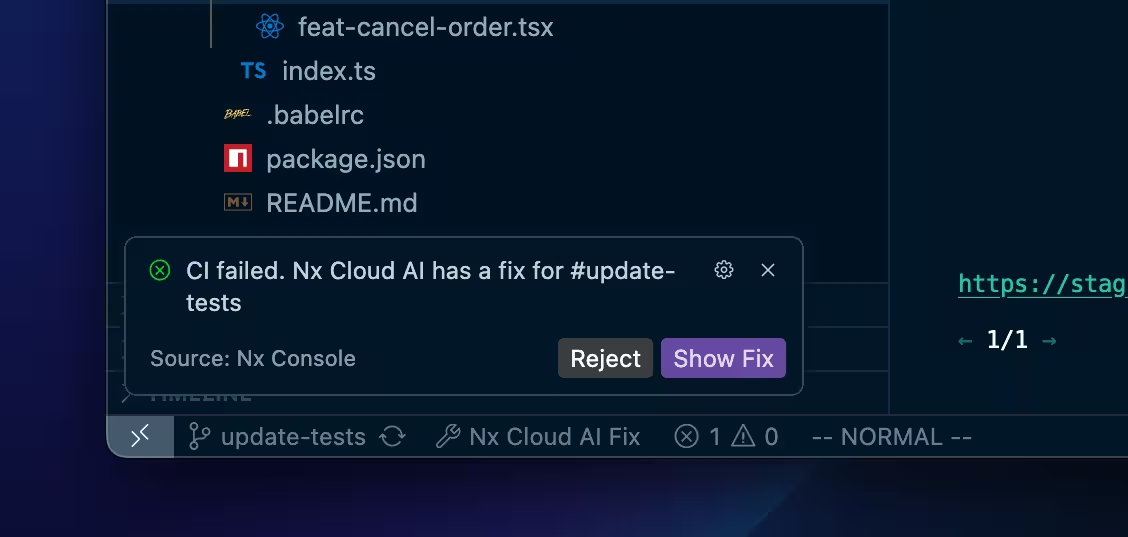
On your pull request/Merge request
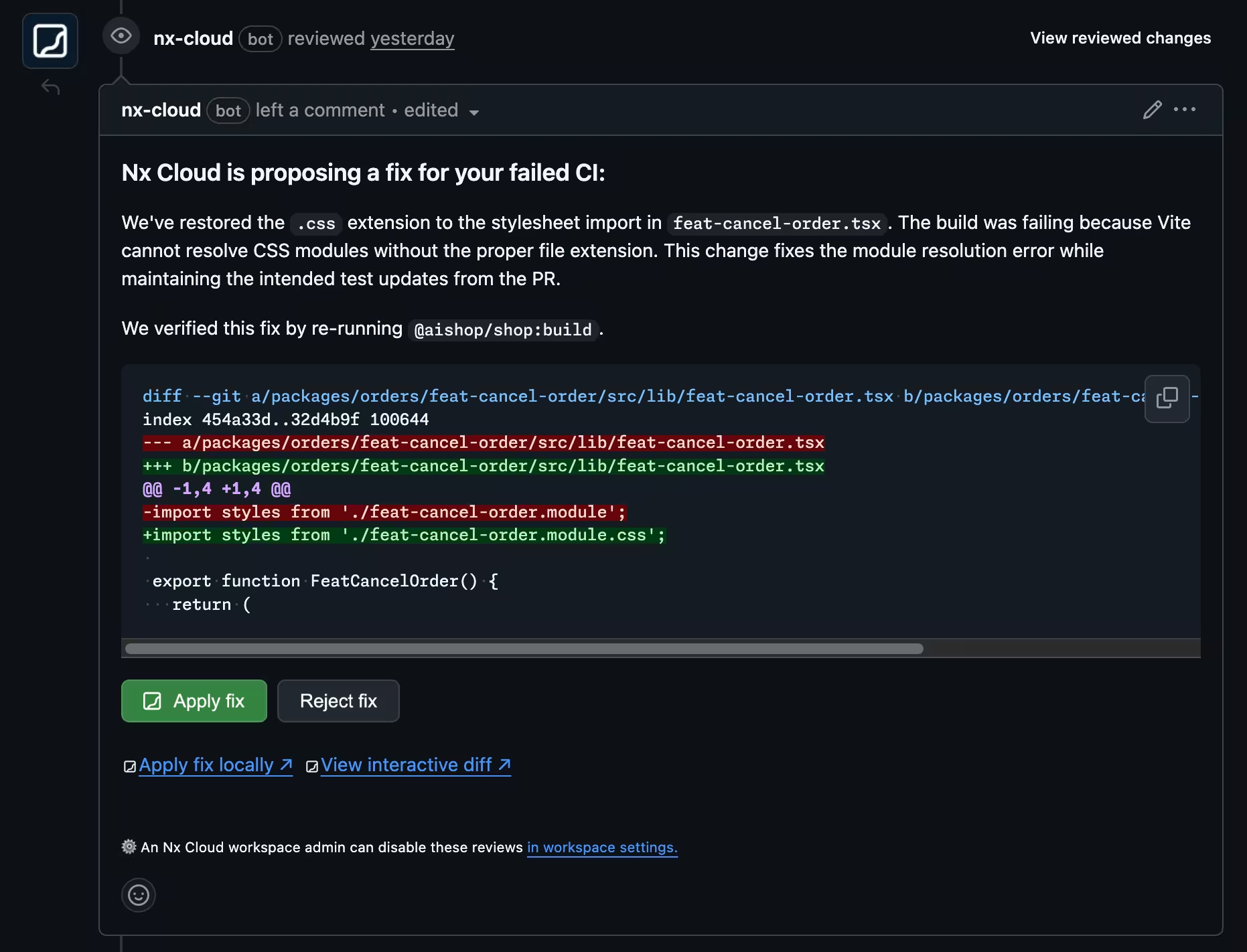
Section titled “On your pull request/Merge request”Self-Healing CI posts a comment on your PR with:
- A summary of the reasoning behind the fix
- A diff view showing the proposed changes
- Buttons to apply or reject the fix
Applying and reverting fixes
Section titled “Applying and reverting fixes”Applying a fix
Section titled “Applying a fix”You can apply a proposed fix through:
- Editor notification - Click "Apply" in the Nx Console notification
- PR/MR comment - Click the "Apply" button
- Nx Cloud UI - Use the apply button in the diff viewer
Applying locally for fine-tuning
Section titled “Applying locally for fine-tuning”If a fix is 90% correct but needs minor adjustments:
- Click "Apply Locally" in the GitHub comment or Nx Cloud UI
- Run the provided command in your terminal
- Make your adjustments and commit
The provided command takes the form below. The fix identifier is shown in the Nx Cloud UI and in the PR/MR comment. Pass --no-interactive to disable prompting.
nx apply-locally <fix-identifier> 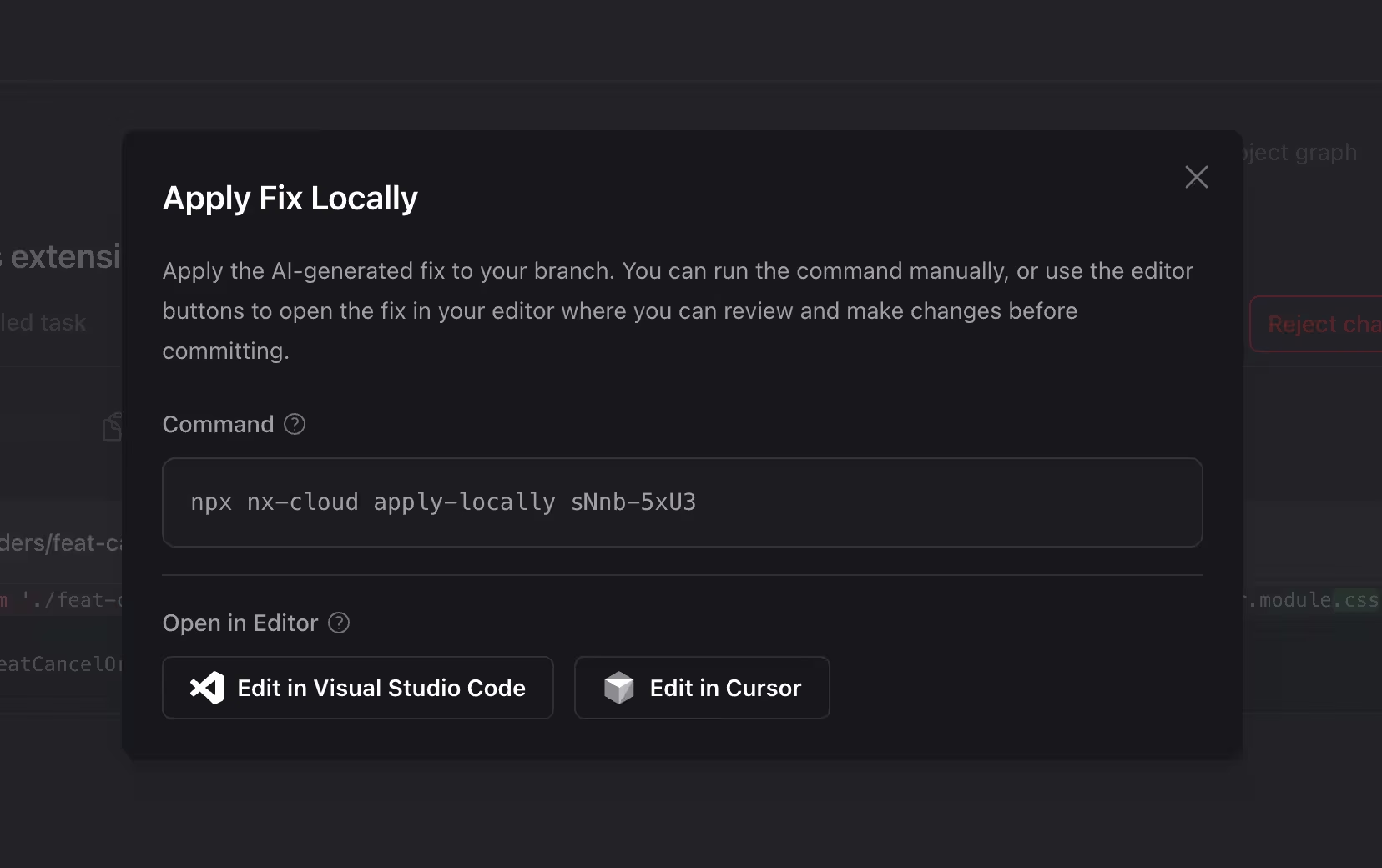
Reverting a fix
Section titled “Reverting a fix”If you accidentally applied a fix, you can:
- Manually revert the Git commit
- Use the "Revert changes" button in the Nx Cloud diff viewer
Advanced: Configuration overrides
Section titled “Advanced: Configuration overrides”When to use configuration overrides
Section titled “When to use configuration overrides”- Temporarily disable Self-Healing CI on a sensitive branch
- Test configurations before committing to workspace settings
Available settings
Section titled “Available settings”Set these under ai in your .nx/ci-config.yaml file:
| Key | Description | Example |
|---|---|---|
fix-tasks-patterns | Override which tasks are eligible for fixes | ['*lint*', '*test*'] |
auto-apply-patterns | Override which tasks can be auto-applied | ['*lint*'] |
Pattern syntax
Section titled “Pattern syntax”Patterns use glob syntax to match task names, and a ! prefix negates a pattern:
ai: # Fix lint and test tasks, but never e2e fix-tasks-patterns: - '*lint*' - '*test*' - '!*e2e*' # Auto-apply only lint fixes auto-apply-patterns: - lintPrecedence rules
Section titled “Precedence rules”When both workspace settings and .nx/ci-config.yaml are present:
.nx/ci-config.yamltakes precedence for the keys it sets- Falls back to workspace settings for the keys it does not set
Viewing applied configuration
Section titled “Viewing applied configuration”After your CI runs, navigate to the CIPE, then the Configurations tab to see:
- What workspace settings were relevant at the time of the CI pipeline execution
- What the configuration file supplied, if anything
- What the final, effective configuration was