

Resource usage records CPU and memory metrics while your tasks run and surfaces them in Nx Cloud. Use this data to find resource bottlenecks, debug out-of-memory (OOM) errors, and analyze the tasks that cause resource spikes.
Enable resource usage
Section titled “Enable resource usage”Resource usage is an add-on, enabled by default for new organizations. Once it's on, Nx uploads CPU and memory metrics for your CI runs and you view them in Nx Cloud. There's nothing else to set up.
Data collection for each report costs 10 credits. With Nx Agents, each agent generates its own report. For non-distributed runs, every report generated on the same machine counts as a single 10 credit charge, however many runs happen there. See the credits pricing reference for details.
Data collection can be turned off at either the organization or the workspace level.
Organization
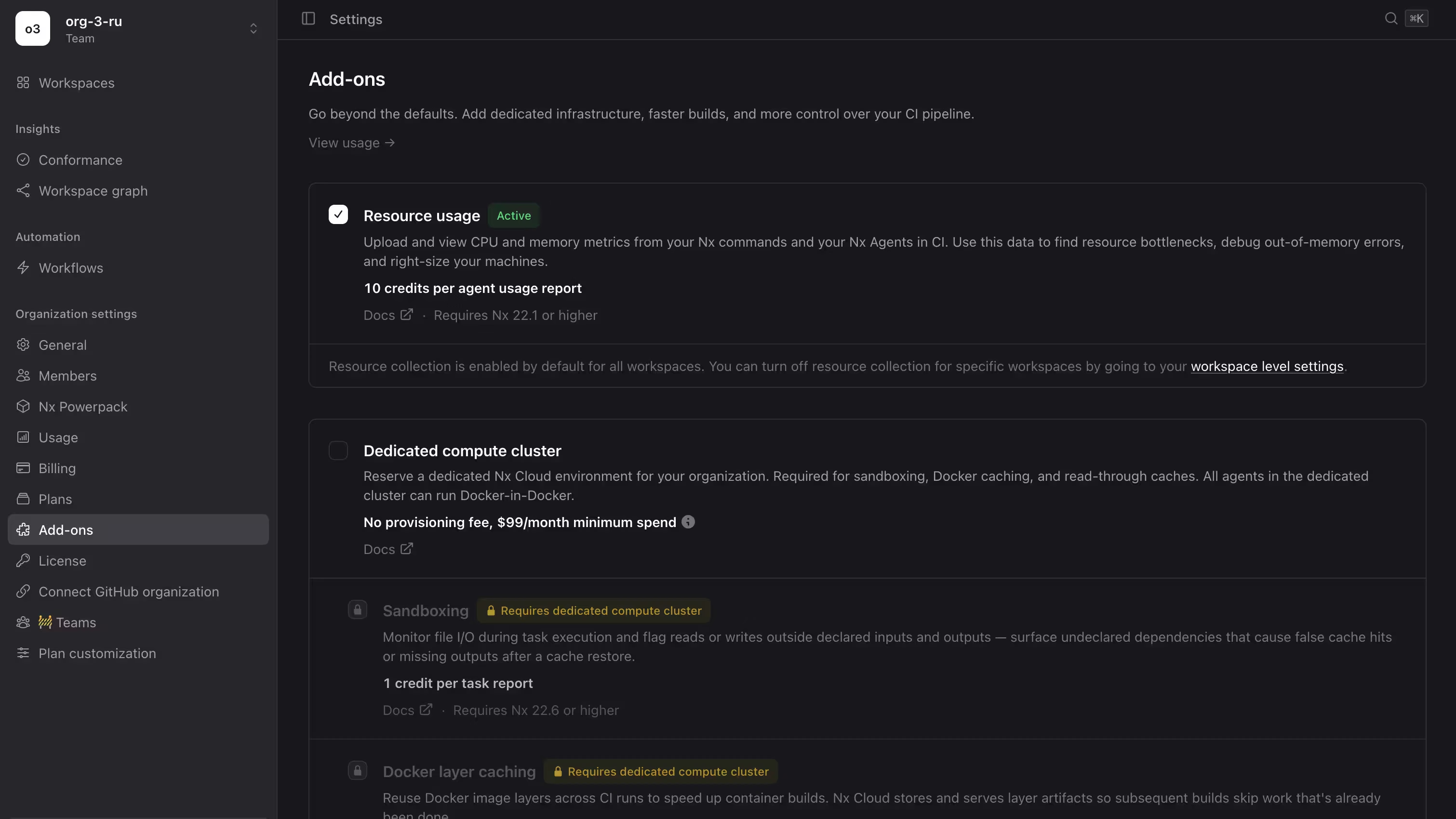
Section titled “Organization”Turn the resource usage add-on on or off under Settings > Add-ons. Disabling it here stops collection for every workspace in the organization.
Workspace
Section titled “Workspace”Once the add-on is on for the organization, go to Workspace > Settings and find the Resource usage reports card. Two switches control collection independently:
- Distributed runs - metrics for runs distributed across Nx Agents.
- Non distributed runs - metrics for runs from non-distributed Nx commands.
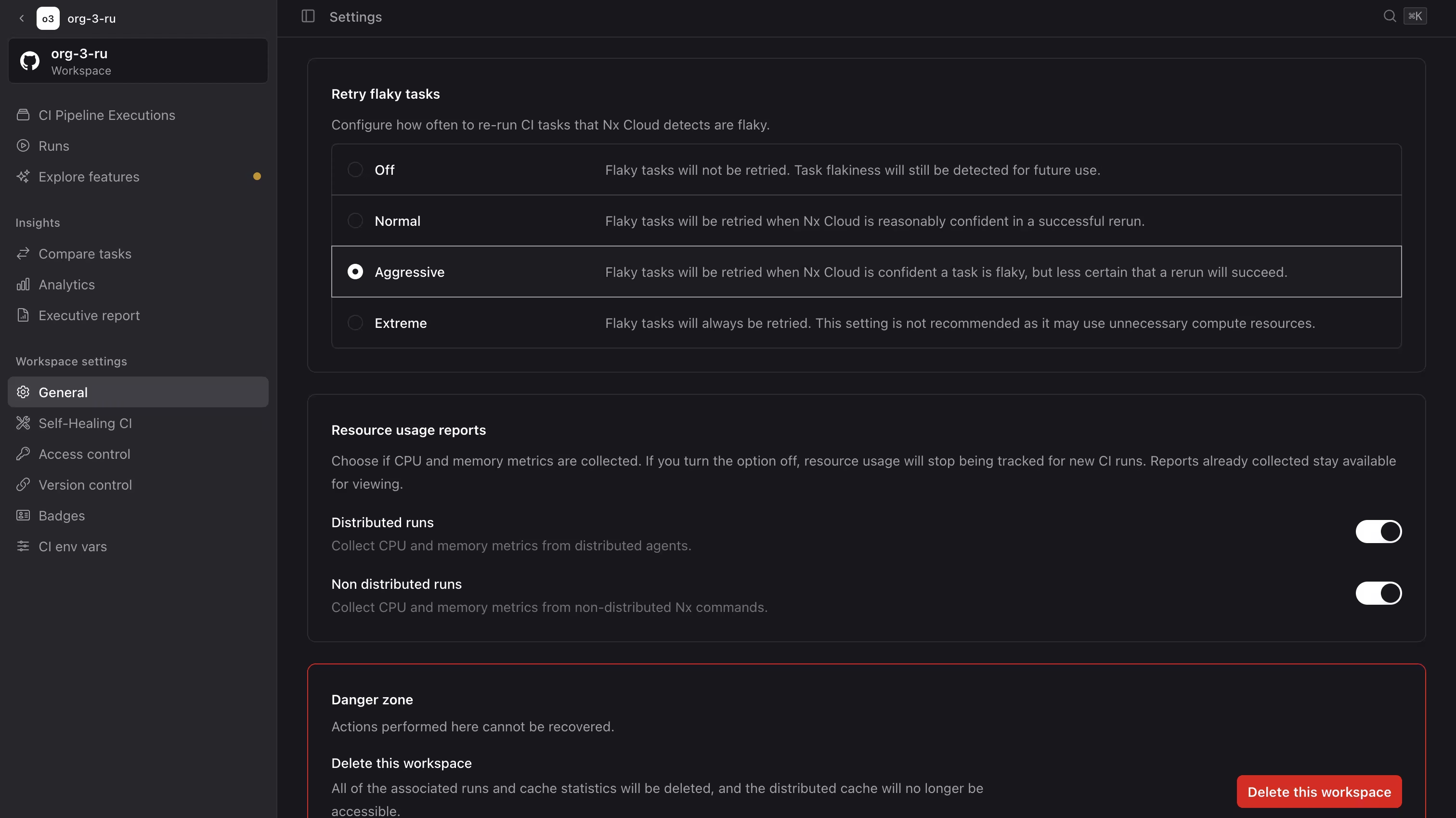
Turning a switch off stops new reports from being generated. Reports collected earlier stay viewable as long as the add-on is active for the organization.
Metrics are collected in CI only. Runs on a developer machine don't report resource usage.
Viewing resource usage
Section titled “Viewing resource usage”What gets measured depends on how you run. With Nx Agents, Nx records every task an agent executes. For a standalone Nx command in CI, it records every task in the run.
Runs with Nx Agents
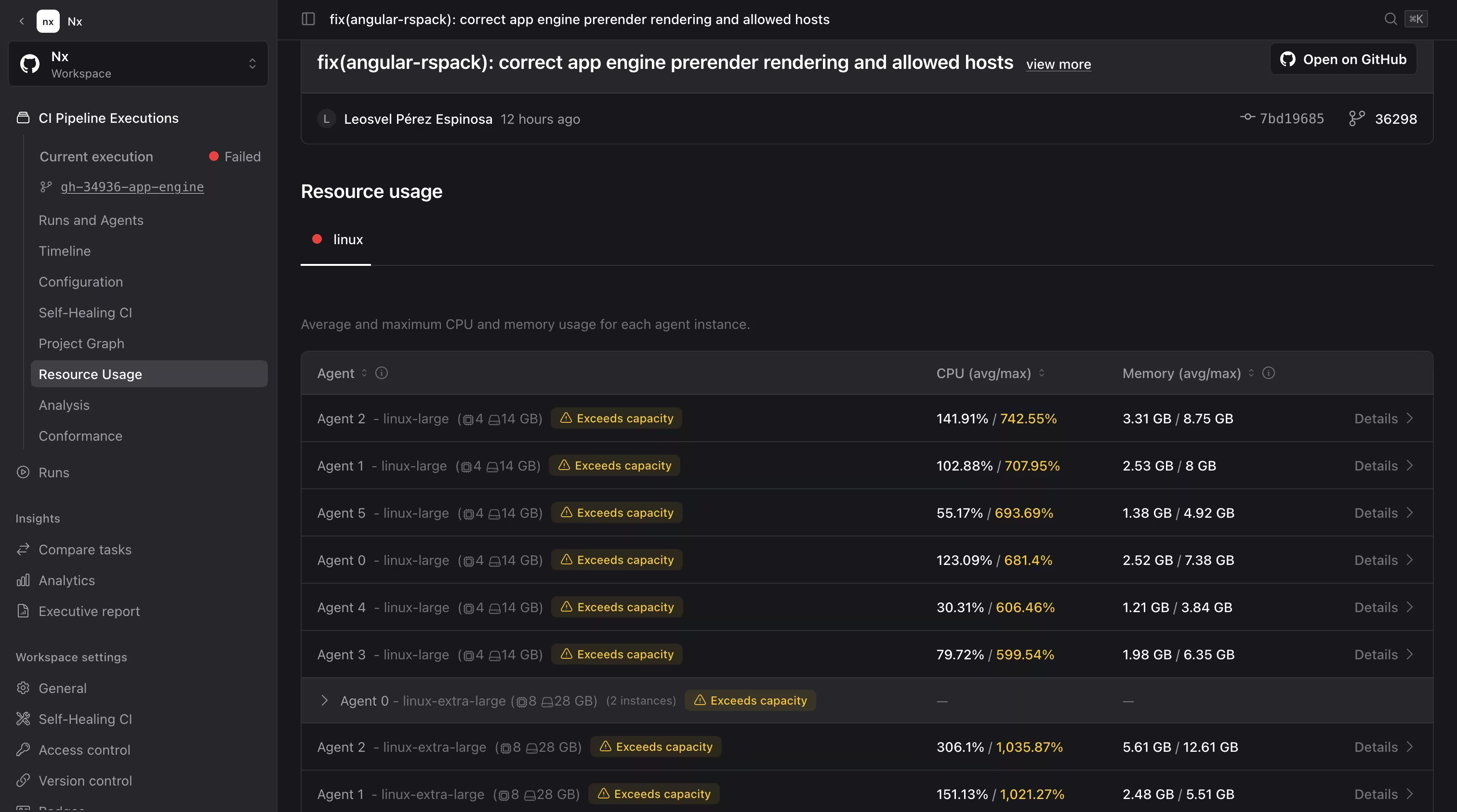
Section titled “Runs with Nx Agents”Open any CI pipeline execution and go to the Resource usage tab.
Agent resource usage summary
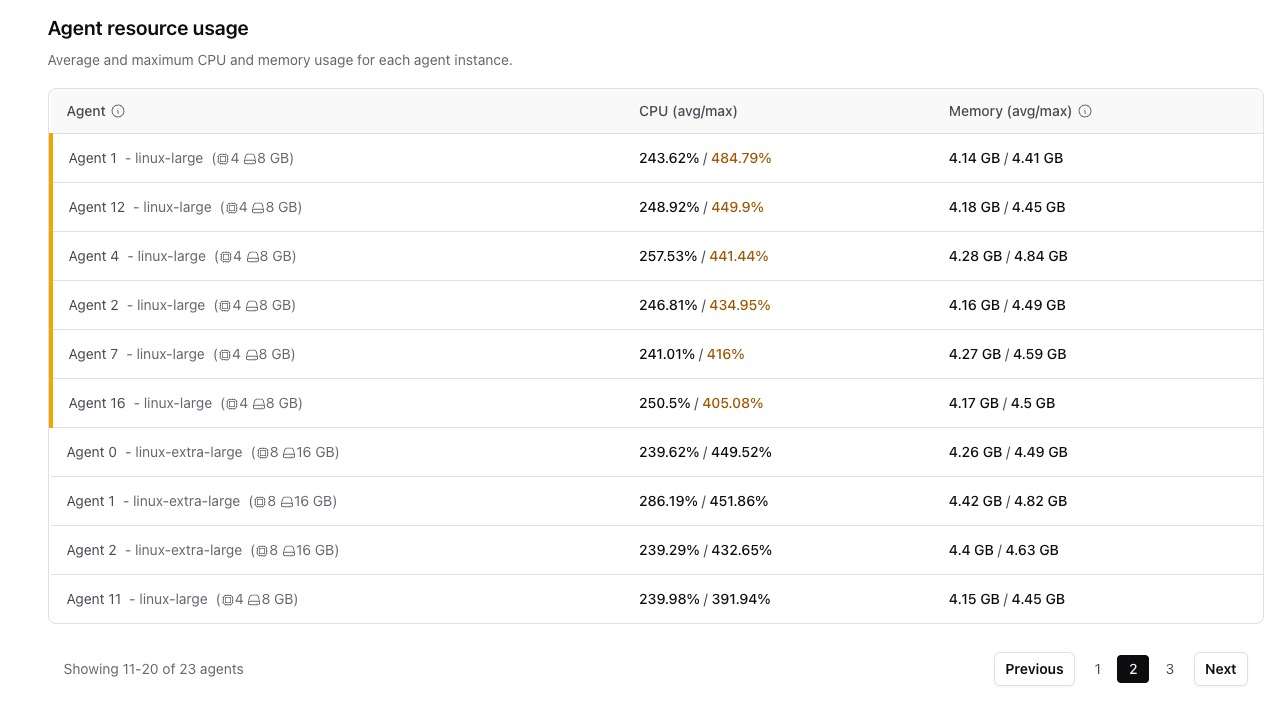
Section titled “Agent resource usage summary”The Agent resource usage table lists every agent in the run with its average and maximum CPU and memory, plus the machine specs (cores and RAM) of its resource class. It's the fastest way to spot an agent that ran hot.
Resource usage over time
Section titled “Resource usage over time”Click an agent to open its Resource usage over time view. Separate memory and CPU charts plot utilization across the agent's lifetime, with reference lines for the machine's capacity and peak usage. When a task exceeds available memory and is killed, the chart marks the out-of-memory point so you can trace the failure back to the task that caused it.
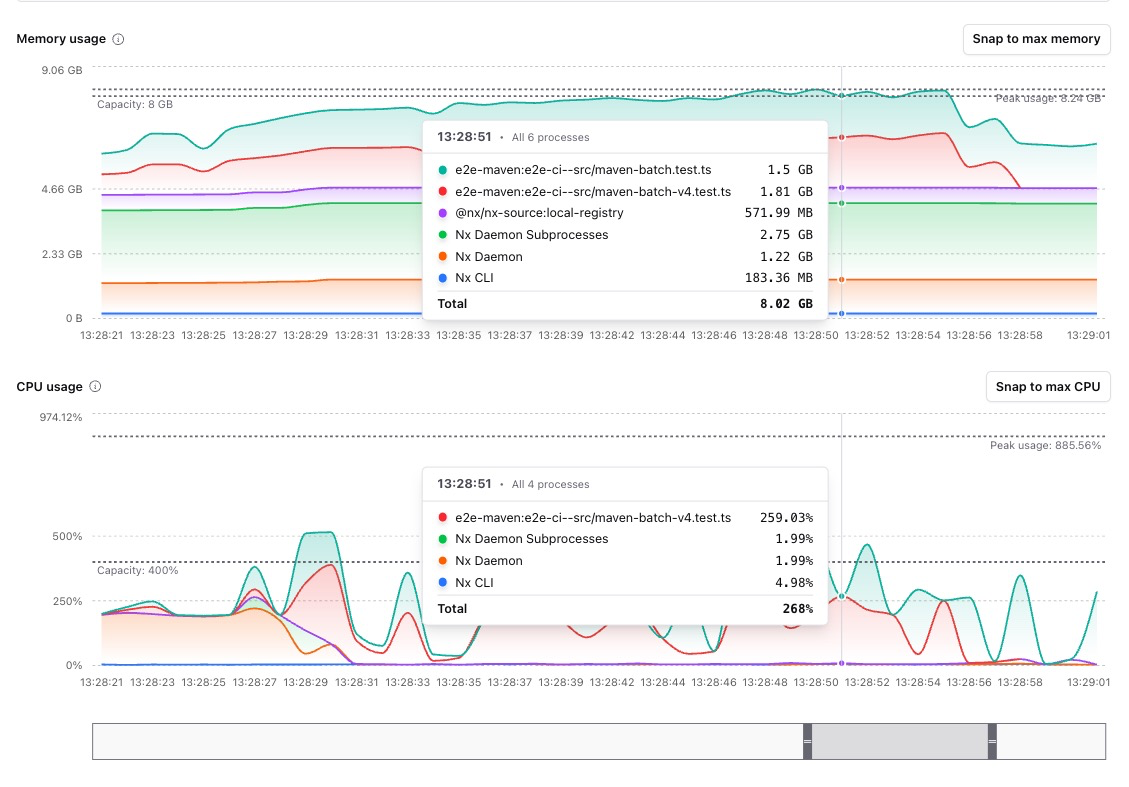
The detail view has a few controls for digging in:
View mode - switch between Individual (each task or process plotted separately) and Stacked (total usage at any point in time).
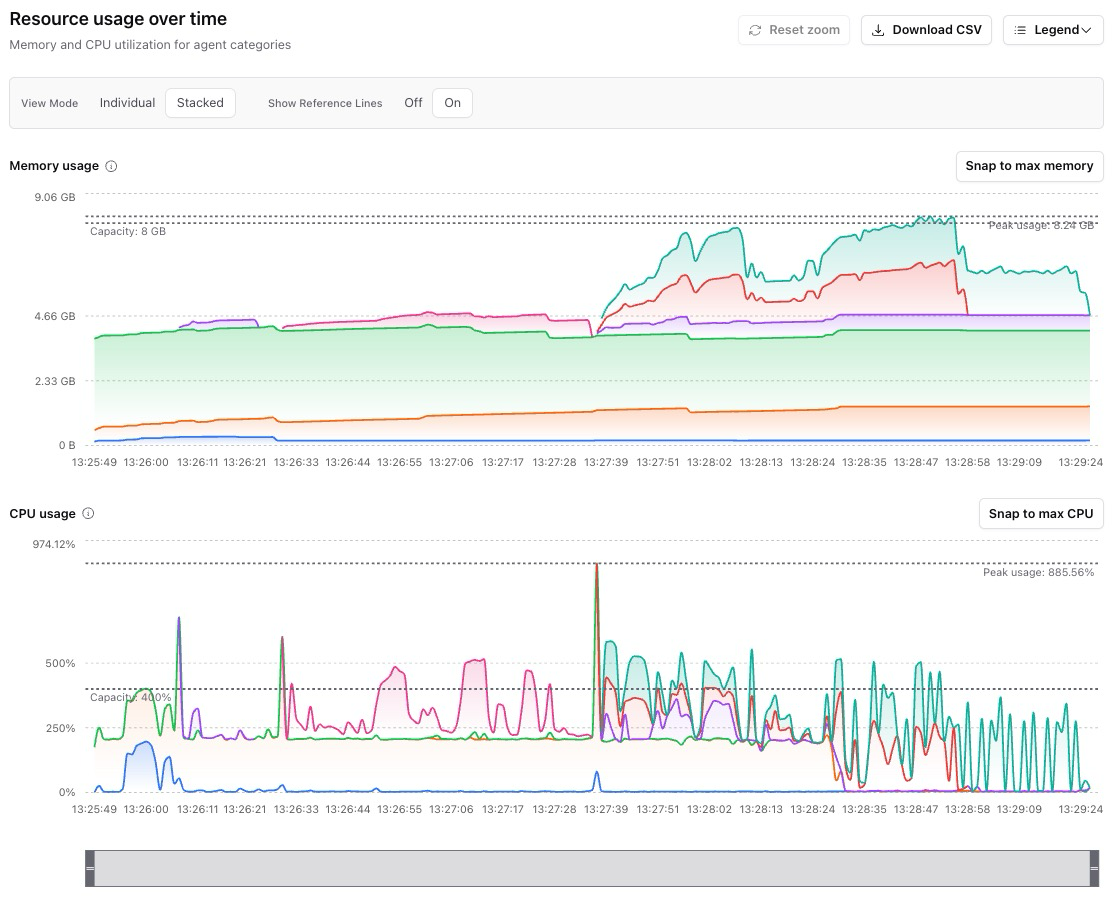
Reference lines - toggle the capacity and peak-usage lines on or off.
Snap to max - zoom the axis to the peak memory or CPU value.
Legend - click items to focus on specific tasks or processes (for example a single
nx build, the Nx daemon, or CLI overhead).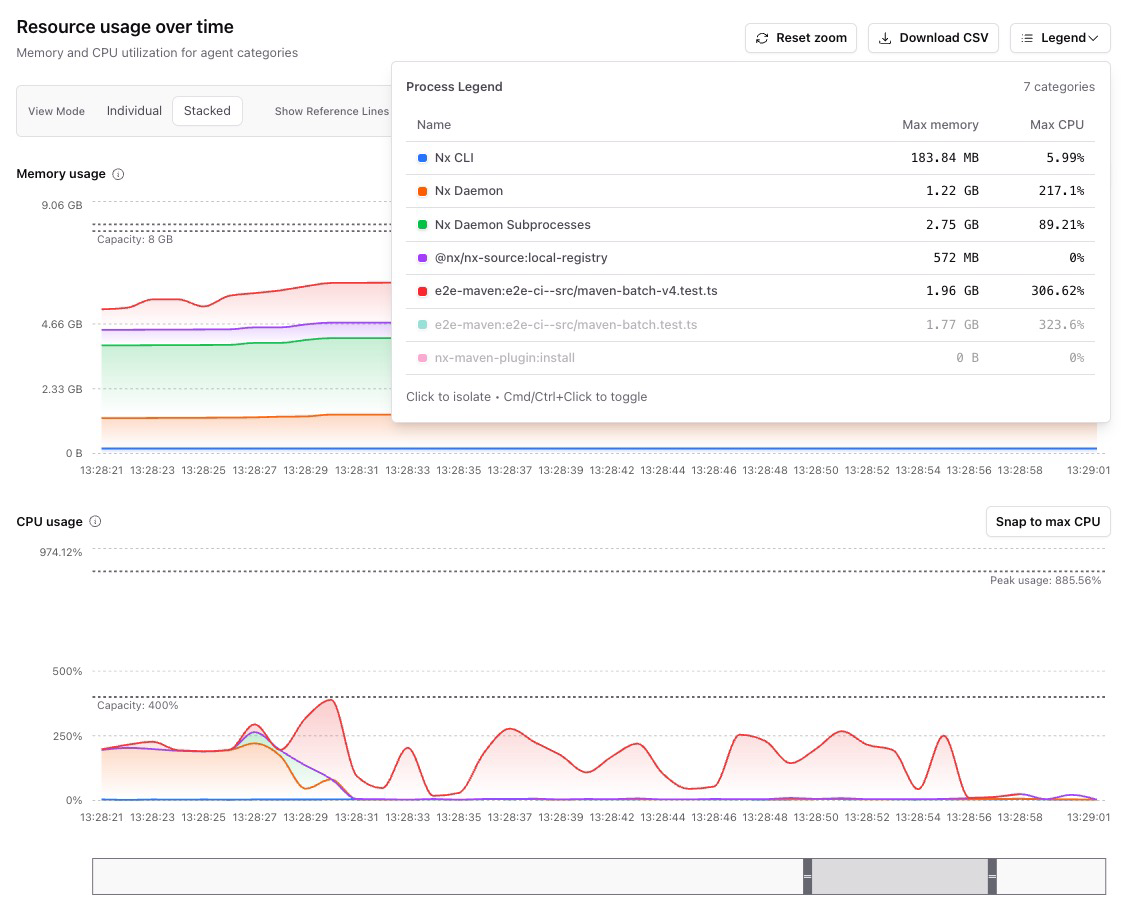
Timeline scrubber - jump to a point in time or zoom in on a spike.
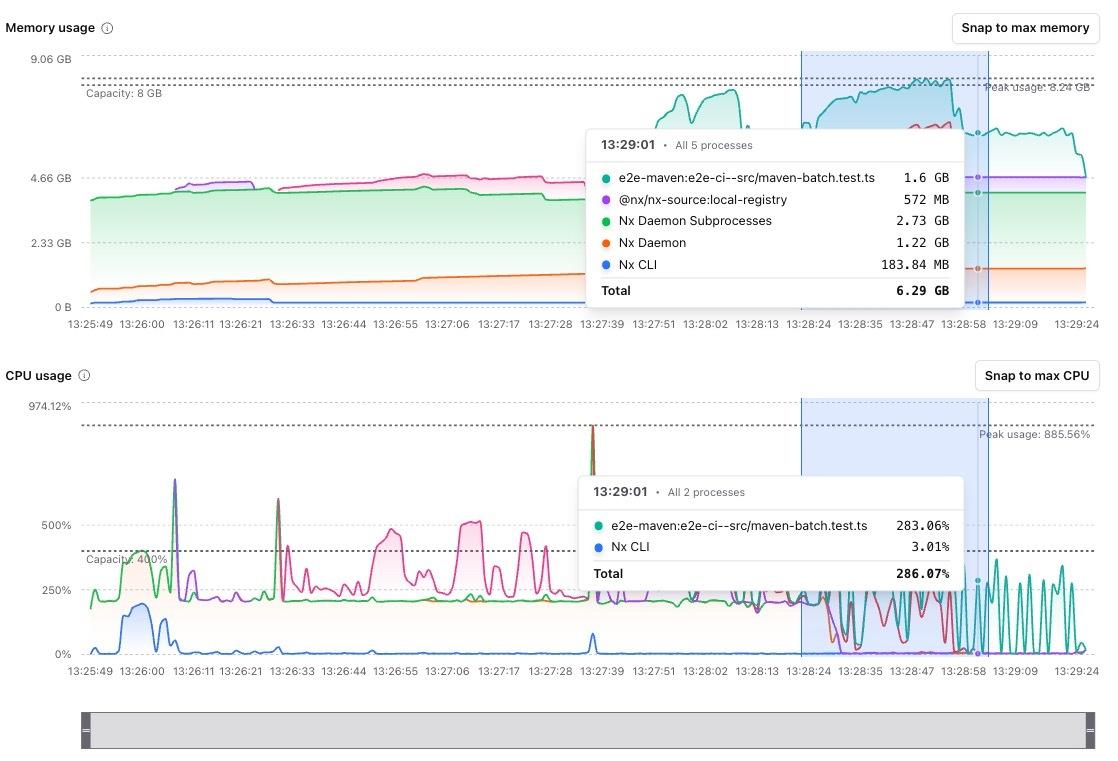
Download CSV - export the raw per-process data for deeper analysis.
Runs without Nx Agents
Section titled “Runs without Nx Agents”For a run that isn't distributed on Nx Agents, open the run details and go to the Resource usage view.
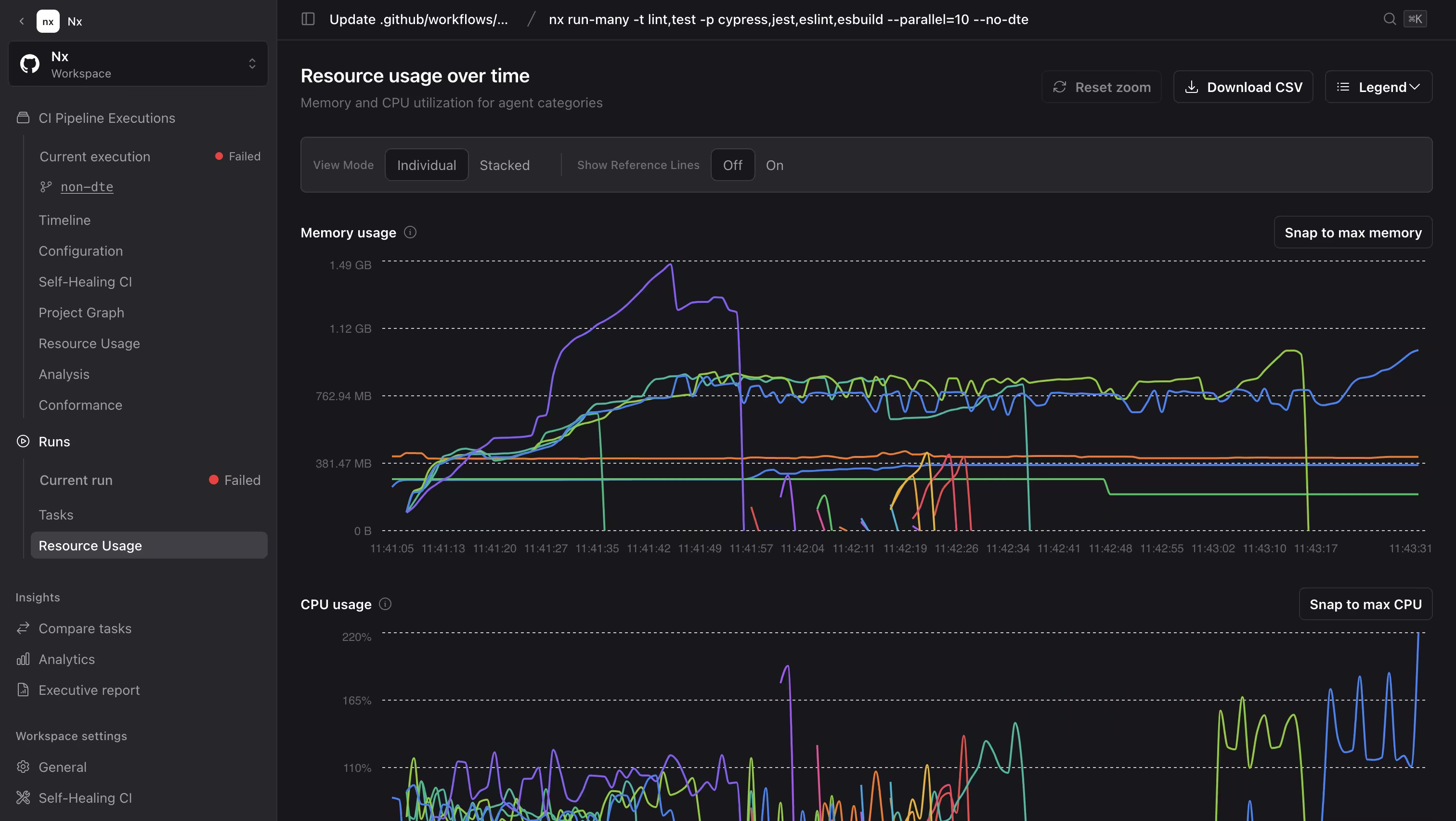
Three cards across the top give you the machine specs plus average and maximum figures for CPU and memory. Memory and CPU charts below them plot utilization over the run's lifetime, broken down by process. The two charts share an x-axis, so hovering one shows you the same moment in the other.
The controls match the per-agent detail view described above: switch between Individual and Stacked view modes, toggle reference lines, snap the axis to peak usage, click legend items to isolate a process, drag across a chart to zoom into a spike, and download the raw per-process data as CSV. Reset zoom returns to the full timeline.
Access raw reports through the Public API
Section titled “Access raw reports through the Public API”The Public API's resource-utilization asset contains process samples and metadata. See Read raw resource-utilization reports for the record format, process-to-task mapping, and CPU and memory interpretation.
Common use cases
Section titled “Common use cases”- Find memory-hungry tasks - figure out which project eats the most memory when running in parallel, then lower its parallelism instead of slowing everything down.
- Debug OOM kills - trace an out-of-memory failure to the exact task that caused it.
- Spot misconfigured tooling - catch a bundler or build tool pulling in more files than it should.
- Right-size agents - pick the correct agent resource class when moving to Nx Agents from GitHub Actions or another CI provider.
- Detect memory leaks - look for tasks where memory keeps climbing over time.
- Compare before and after upgrades - check whether a dependency upgrade spiked resource usage.
Resource metrics when you bring your own compute
Section titled “Resource metrics when you bring your own compute”If you run the agents on your own CI compute, Nx Cloud can still collect per-agent CPU and memory metrics. Opt in by adding a single CLI step to each agent job.
What to add
Section titled “What to add”At the end of each agent job, run npx nx-cloud upload-agent-metrics. Use your provider's always-run mechanism so the step runs even when the agent is killed mid-task, which is precisely the scenario where the metrics matter most.
Here's the GitHub Actions step:
- name: Upload agent metrics if: always() run: npx nx-cloud upload-agent-metrics env: NX_AGENT_NAME: ${{ matrix.agent }}The if: always() condition is important: if an agent is OOM-killed mid-run, the normal step sequence stops, but the upload still needs to happen so you can see which task caused the kill.
The bring your own compute guide shows the equivalent step for CircleCI, Azure Pipelines, Bitbucket Pipelines, GitLab CI, and Jenkins.
Configuration
Section titled “Configuration”Metrics collection is controlled by these environment variables:
| Variable | Description |
|---|---|
NX_CLOUD_DISABLE_METRICS_COLLECTION | Set to the exact string true to disable CPU and memory metric collection during task execution. Other values, including 1 and TRUE, don't disable it. |
NX_CLOUD_METRICS_DIRECTORY | Directory where Nx writes resource metrics during task execution. |