
Task sandboxing confines each task to the files it declares as inputs and outputs in your project configuration (whether explicit or inferred). Reading a file the task didn't declare, or writing outside its declared outputs, is a sandbox violation. Undeclared dependencies have direct implications on caching correctness, from false cache hits serving stale results to missing output files after a cache restore.
Why hermeticity matters
Section titled “Why hermeticity matters”A task is hermetic when it only reads from its declared inputs and only writes to its declared outputs. Hermetic tasks are safe to cache and replay because their behavior is fully described by their configuration.
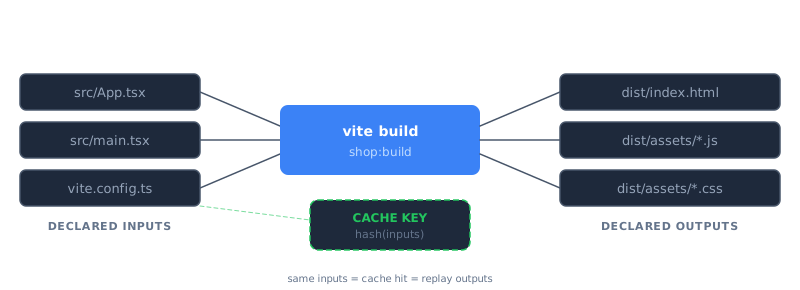
Computation caching relies on declared inputs and outputs to determine when a cache entry is valid. If a task reads a file that isn't listed in its inputs, the cache has no way to know that file changed, and it'll serve a stale result. If a task writes files outside its declared outputs, those files won't be captured in the cache and will go missing on a cache hit.
Undeclared dependencies are difficult to catch through code review alone. A task might work correctly for months until an unrelated change to an undeclared input causes a cache-related failure that's hard to trace back to the root cause.
Example: undeclared input (false cache hit)
Section titled “Example: undeclared input (false cache hit)”An API app reads app.yaml from the project root at startup to configure routes and middleware. If app.yaml isn't included in the target's inputs, changing the configuration won't invalidate the cache. The next CI run serves stale output built against the old configuration.
Sandboxing catches this because it sees the build process reading app.yaml even though it isn't declared. Add the file to the target's inputs in project.json to fix it:
{ "targets": { "build": { "inputs": ["{projectRoot}/app.yaml"] } }}Example: undeclared output (missing artifacts on replay)
Section titled “Example: undeclared output (missing artifacts on replay)”When using TypeScript *.d.ts generation (such as vite-plugin-dts) to emit type declarations outside of dist/, the build produces two output directories:
packages/ my-package/ dist/ types/ src/ package.jsonIf the target's outputs only lists ["{projectRoot}/dist"], the types/ directory isn't stored in the remote cache. On a cache hit, dist/ is restored but the type declarations are missing, breaking downstream library consumers.
Sandboxing catches this because it sees writes to types/ that aren't covered by the declared outputs. Include both directories in outputs so they can be replayed from cache:
{ "targets": { "build": { "outputs": ["{projectRoot}/dist", "{projectRoot}/types"] } }}How sandboxing works
Section titled “How sandboxing works”Sandboxing runs each task in an isolated environment scoped to its declared inputs and outputs. You get an audit trail of every file each task touched during execution, warnings when tasks have undeclared dependencies, and confidence that your cache configuration is correct rather than only appearing to work.
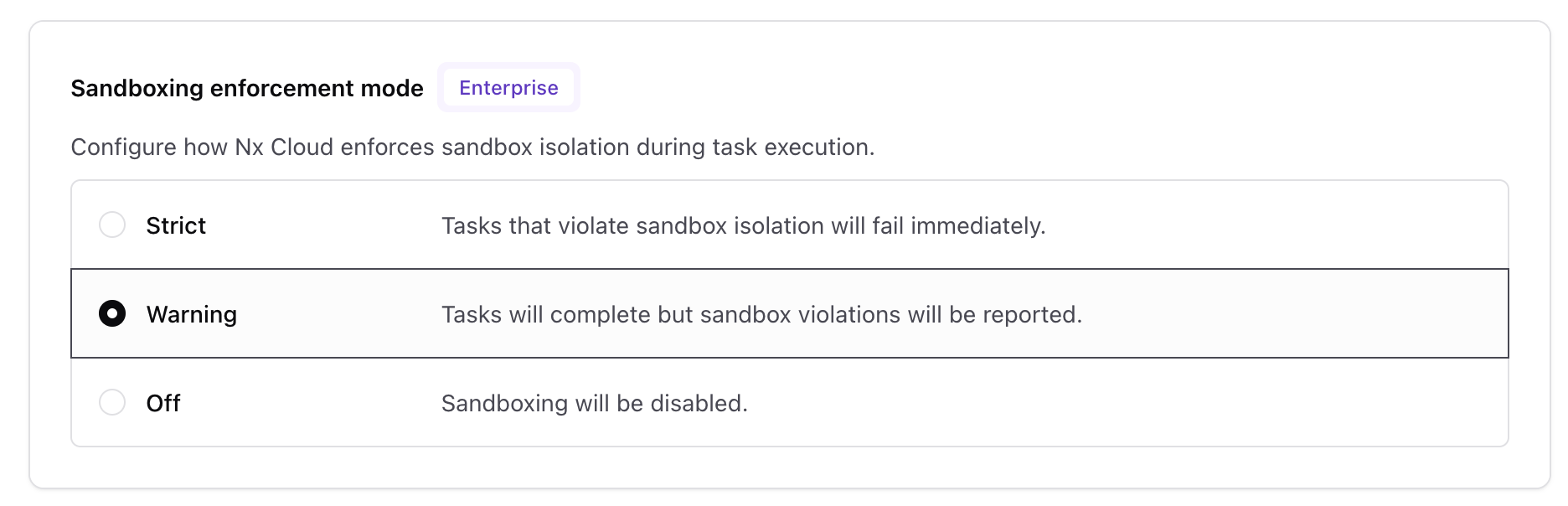
In Warning mode (recommended when getting started), violations are reported in the Nx Cloud UI but tasks continue to completion. In Strict mode, tasks fail immediately when a violation is detected. See Cloud settings to configure the enforcement mode.
Investigating violations
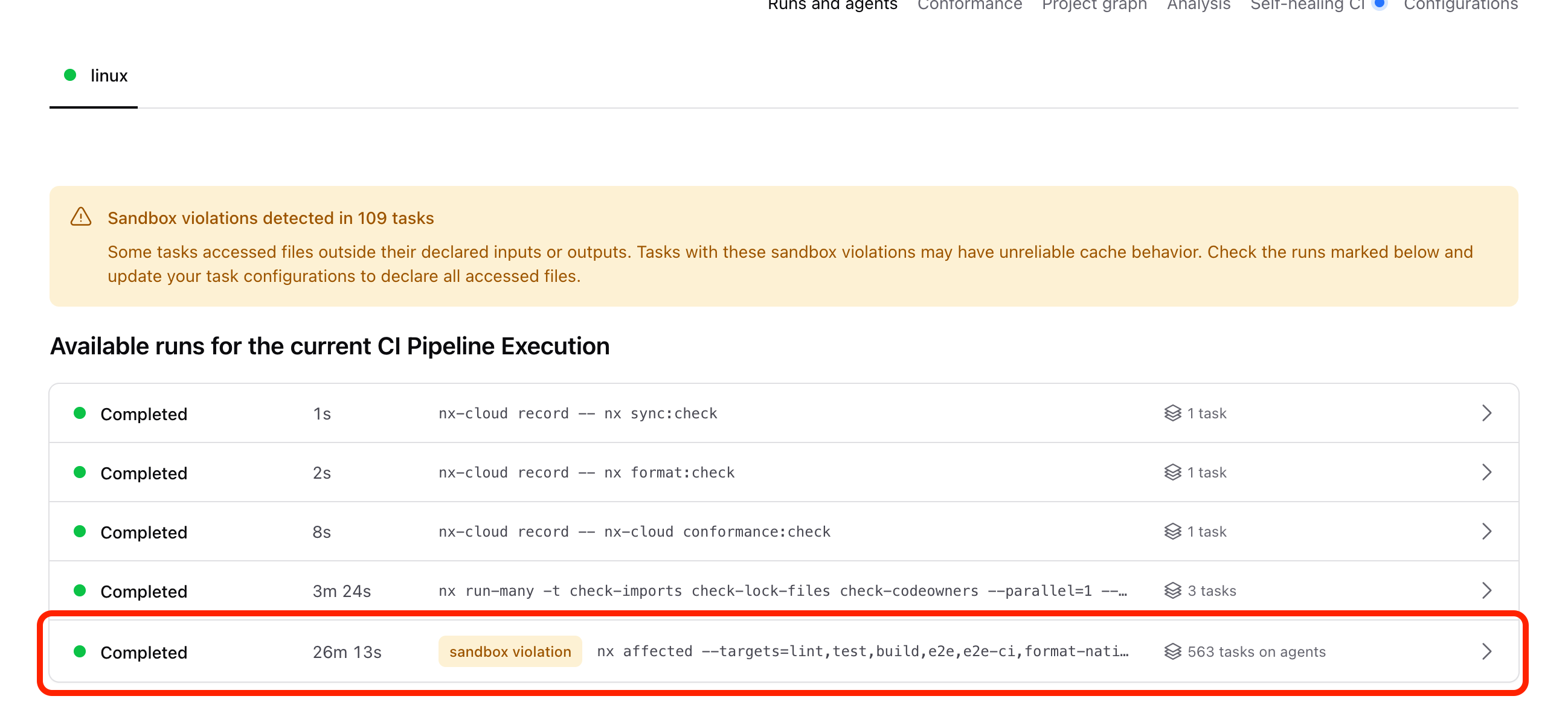
Section titled “Investigating violations”When sandboxing detects undeclared file access, a warning banner appears on the CI Pipeline Execution (CIPE) page in Nx Cloud. Runs that contain violations are tagged with a "sandbox violation" badge.
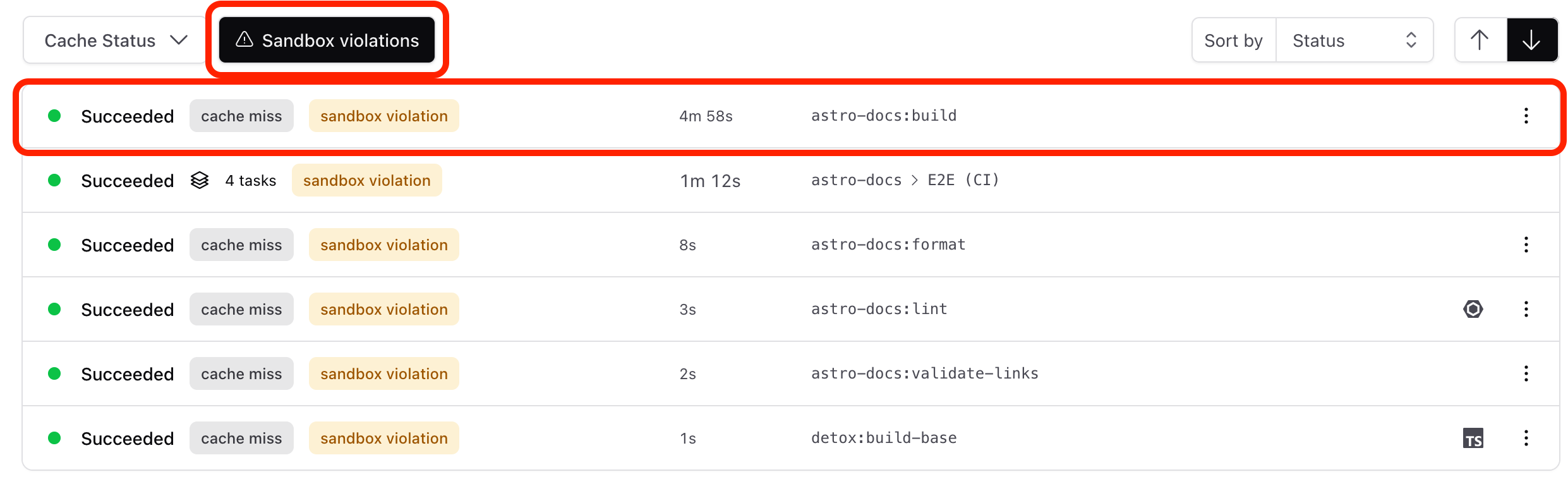
Click into a run to see which individual tasks have violations. Click the Sandbox violations button to filter the task list to only tasks with undeclared reads or writes.
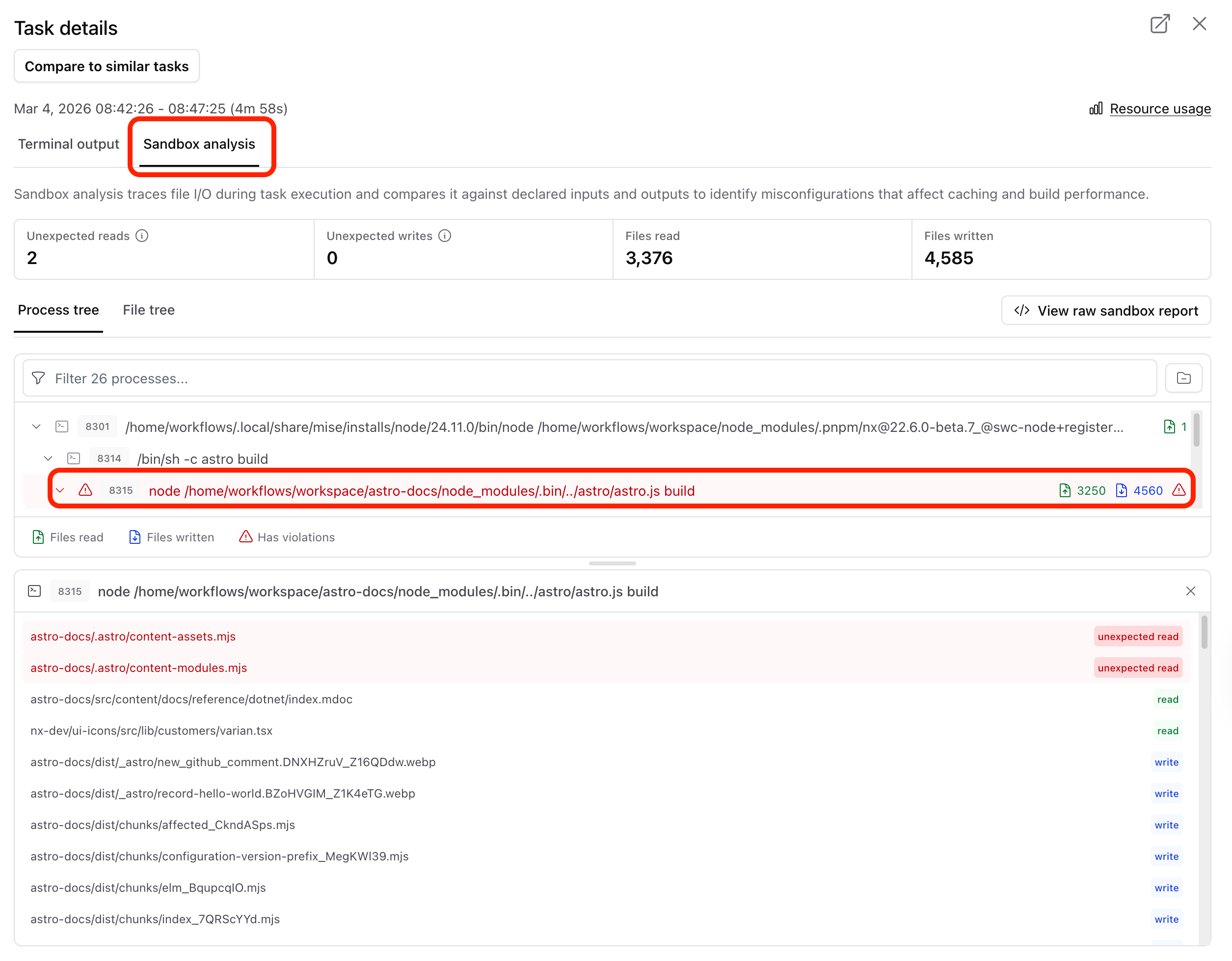
Open the task details and switch to the Sandbox analysis tab. The process tree shows every process spawned during the task, along with the files each one read and wrote. Click a process to see its full file access list. Files flagged as "unexpected read" or "unexpected write" are the ones not covered by your declared inputs and outputs.
To export the raw report data for further analysis, click View raw sandbox report to download the JSON report.
Once you have identified the violating tasks, follow Fix sandbox violations to download every report on a branch, classify each violation, and update your project configuration in a structured loop.
Sandbox violations dashboard
Section titled “Sandbox violations dashboard”For an organization-wide view, open Analytics > Sandbox violations for your workspace. It summarizes the most recent report for each task over a time window (the last 7 days by default) with two tiles, Tasks with violations and Clean tasks, and a table of every task showing its count of unexpected reads and writes and when it was last seen. Filter by branch or task to narrow it down.
The How to fix these violations panel offers two paths. Fix with AI copies a ready-made prompt for your coding agent that downloads the reports, edits the task config, and validates before stopping. The manual path gives you the equivalent command sequence. Either way, Fix sandbox violations walks through the full loop.
Inspecting inputs and outputs
Section titled “Inspecting inputs and outputs”Check what your tasks currently declare before enabling sandboxing. Use nx show target to inspect a specific target's resolved inputs and outputs:
nx show target <project>:<target> --inputs --outputsAdd the --json flag for machine-readable output:
nx show target <project>:<target> --inputs --outputs --jsonFor a broader view of the full project configuration, run nx show project:
nx show project <project>You can also use the project details view in Nx Console:
myapp
Root: apps/myapp
Type:application
Targets
build
vite build
Cacheable
The inputs and outputs arrays show exactly what the cache tracks. Sandboxing compares these declarations against what the task actually reads and writes at runtime and reports discrepancies.
Enabling sandboxing
Section titled “Enabling sandboxing”Sandboxing requires a dedicated compute cluster and runs on Nx Agents. It is not supported when you bring your own compute.
- Request a dedicated compute cluster under Settings > Add-ons, if you don't already have one.
- Enable Sandboxing on the same page. If the cluster is still being provisioned, sandboxing is queued and activates automatically once the cluster is ready.
Nx Enterprise single-tenant customers already run on a dedicated environment. Contact your Nx representative to turn on sandboxing for your deployment.
Excluding paths
Section titled “Excluding paths”Create a .nx/workflows/sandboxing-config.yaml file to exclude paths from sandboxing checks.
exclude-reads:  - '**/vite.config.*.timestamp-*'
task-exclusions:  - project: myapp    target: build    exclude-reads:      - .next/cache/**    exclude-writes:      - logs/**  - target: lint    exclude-reads:      - .eslintcache/**
Global exclude-reads and exclude-writes apply to all tasks. Use task-exclusions to scope exclusions to a specific project, target, or combination of both.
Patterns use glob syntax relative to the workspace root.
To exclude paths for a single target, or to stop tracking it altogether, use the ultracache target property. Its patterns add to the ones here rather than replacing them.
Cloud settings
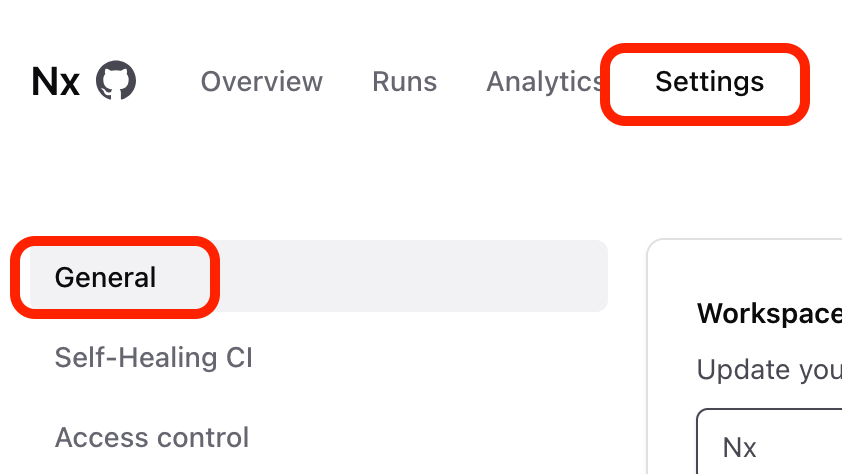
Section titled “Cloud settings”Once sandboxing is enabled, configure the enforcement mode in the Nx Cloud workspace settings under Settings > General.
Three enforcement modes are available:
- Strict - tasks that violate sandbox isolation fail immediately.
- Warning - tasks complete but violations are reported in the Nx Cloud UI.
- Off - sandboxing is disabled.