

Your Next.js application should already be ready for deployment to Vercel.
Configure your Vercel project's settings appropriately
Section titled “Configure your Vercel project's settings appropriately”New Vercel project
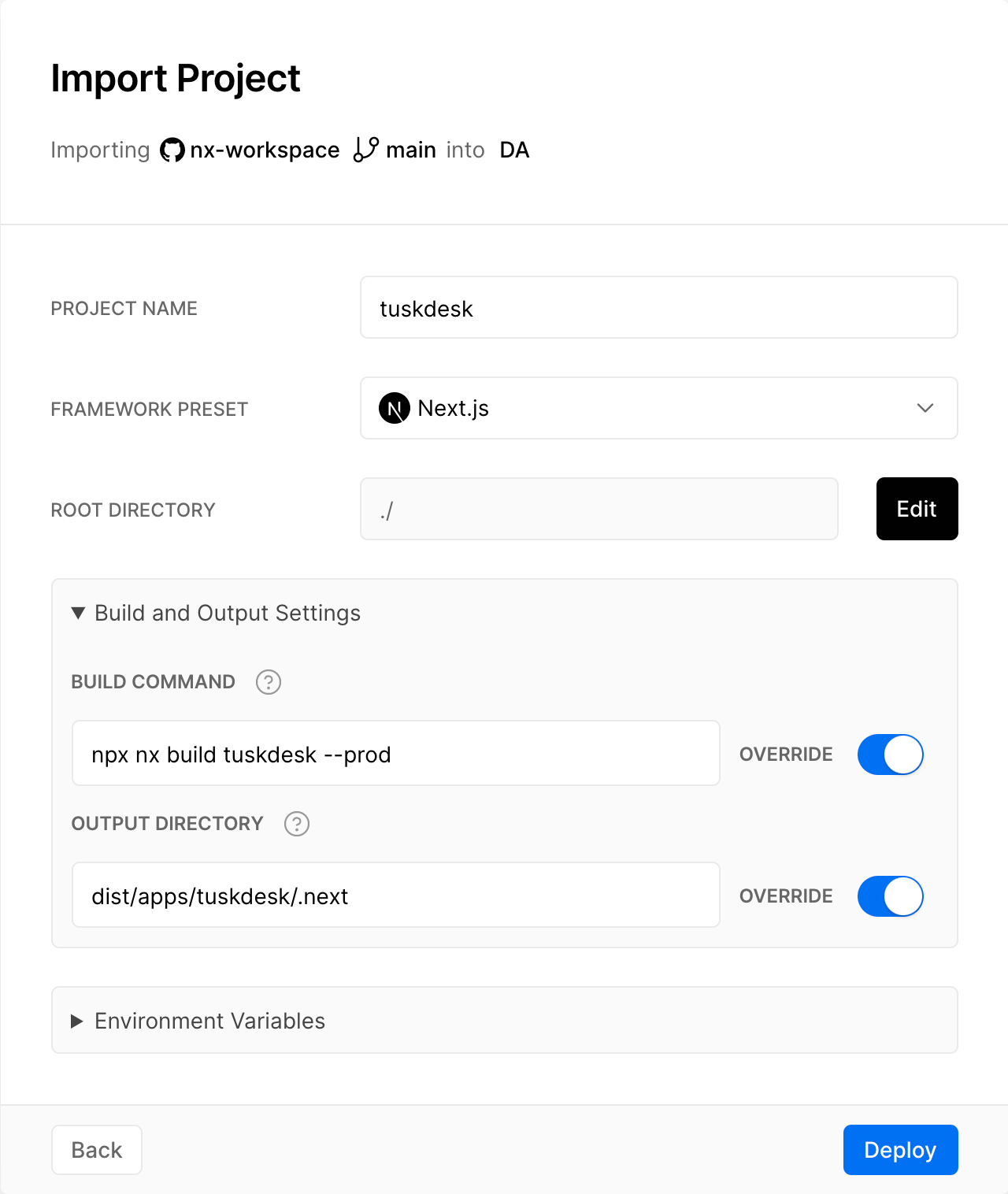
Section titled “New Vercel project”- If you are "importing" your Nx workspace's repository for the first time, make sure you leave the Root Directory field empty. Do not set it to
./or any subdirectory. Vercel will use the full repository root, which is required for Nx to work correctly. - Ensure the Next.js "Framework Preset" is selected
- Expand the "Build and Output Settings" and toggle the override switch for the build command. For example, for an application named
tuskdeskthe value will look like this:
npx nx build tuskdesk --prod- Toggle the override switch for the output directory. Point it to the
.nextdirectory inside the built app:
apps/tuskdesk/.nextTherefore, our full configuration (based on a repo called "nx-workspace" and a project called "tuskdesk") will look like this:
Existing Vercel project
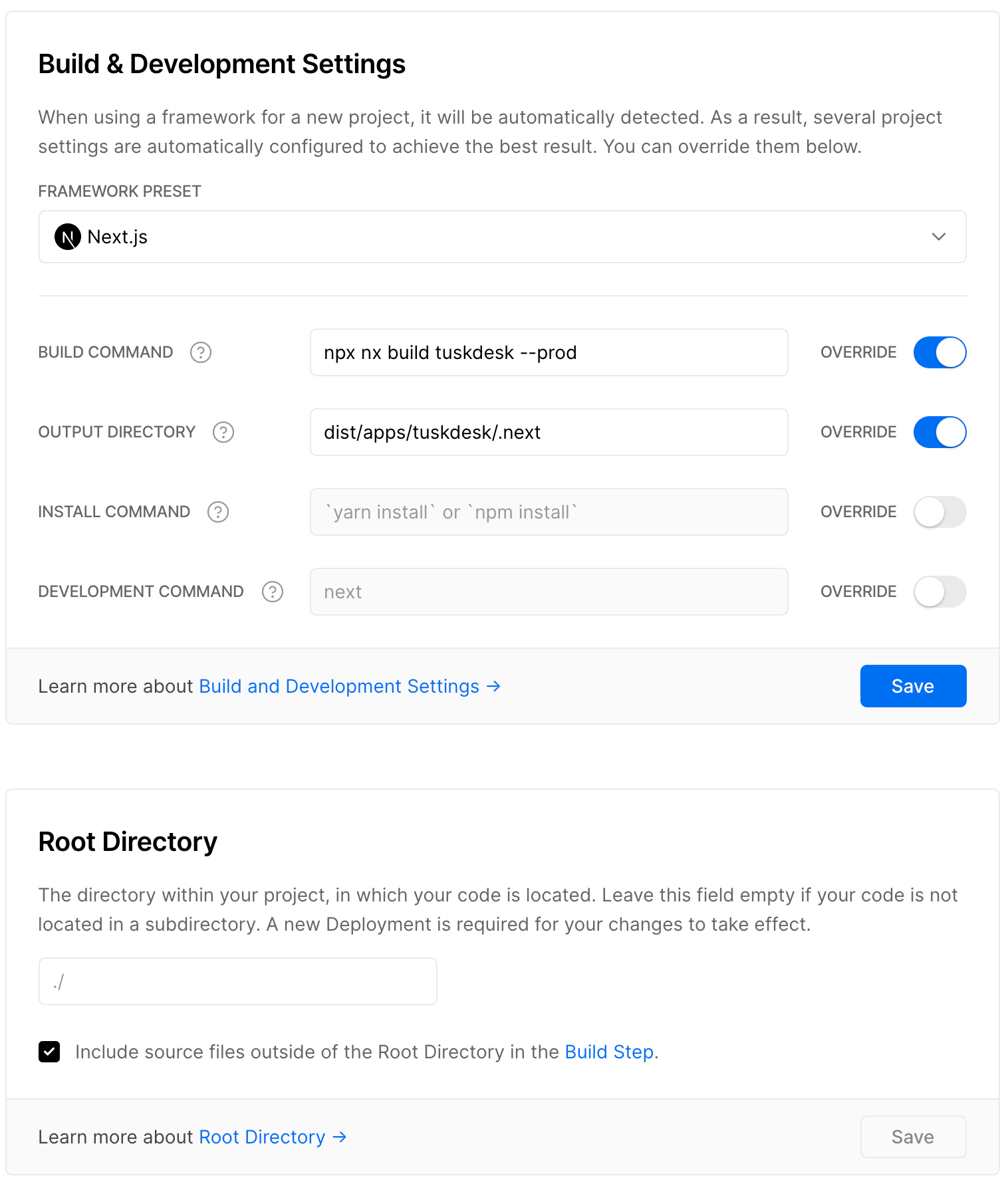
Section titled “Existing Vercel project”If you have an existing project on Vercel then the exact same guidance applies as for the section above, it's just that you will need to update the project's existing settings.
When everything is updated appropriately, for our tuskdesk example we would see the following in our "General" settings UI:
Handling NEXT_PUBLIC_ environment variables with Nx cache
Section titled “Handling NEXT_PUBLIC_ environment variables with Nx cache”Next.js bakes NEXT_PUBLIC_* environment variables into the static bundle at build time. If Nx (or Nx Cloud) has a cached build from a previous run, for example from your local development environment, it will restore that cached output rather than running next build again. This means the cached bundle may contain development values for your NEXT_PUBLIC_* variables even when Vercel has the correct production values configured.
The proper solution is to include your NEXT_PUBLIC_* environment variables in the inputs of your build target. This tells Nx to treat a change in those variable values as a cache miss, ensuring a fresh build is triggered whenever they differ.
In your application's project.json, extend the build target inputs:
{ "targets": { "build": { "inputs": [ "default", "^production", { "env": "NEXT_PUBLIC_API_URL" }, { "env": "NEXT_PUBLIC_SUPABASE_URL" } ] } }}Add one { "env": "VARIABLE_NAME" } entry for each NEXT_PUBLIC_* variable your application uses. When the value of any listed variable differs from the cached build, Nx will invalidate the cache and rebuild.
If you need a quick workaround before configuring inputs, you can pass --skip-nx-cache to bypass the cache entirely:
npx nx build tuskdesk --prod --skip-nx-cacheNote that this disables all Nx caching for that run, eliminating the performance benefit. The inputs approach above is preferred for ongoing deployments.
See Nx Inputs documentation for more details.
Skipping build if the application is not affected
Section titled “Skipping build if the application is not affected”One of the core features of Nx is to run code quality checks and builds only for projects that are affected by recent code changes. We can use Vercel's ignored build step feature to only build our application if it is affected.
To build only what's affected, use the npx nx-ignore <app-name> command under Project Settings > Git on Vercel.
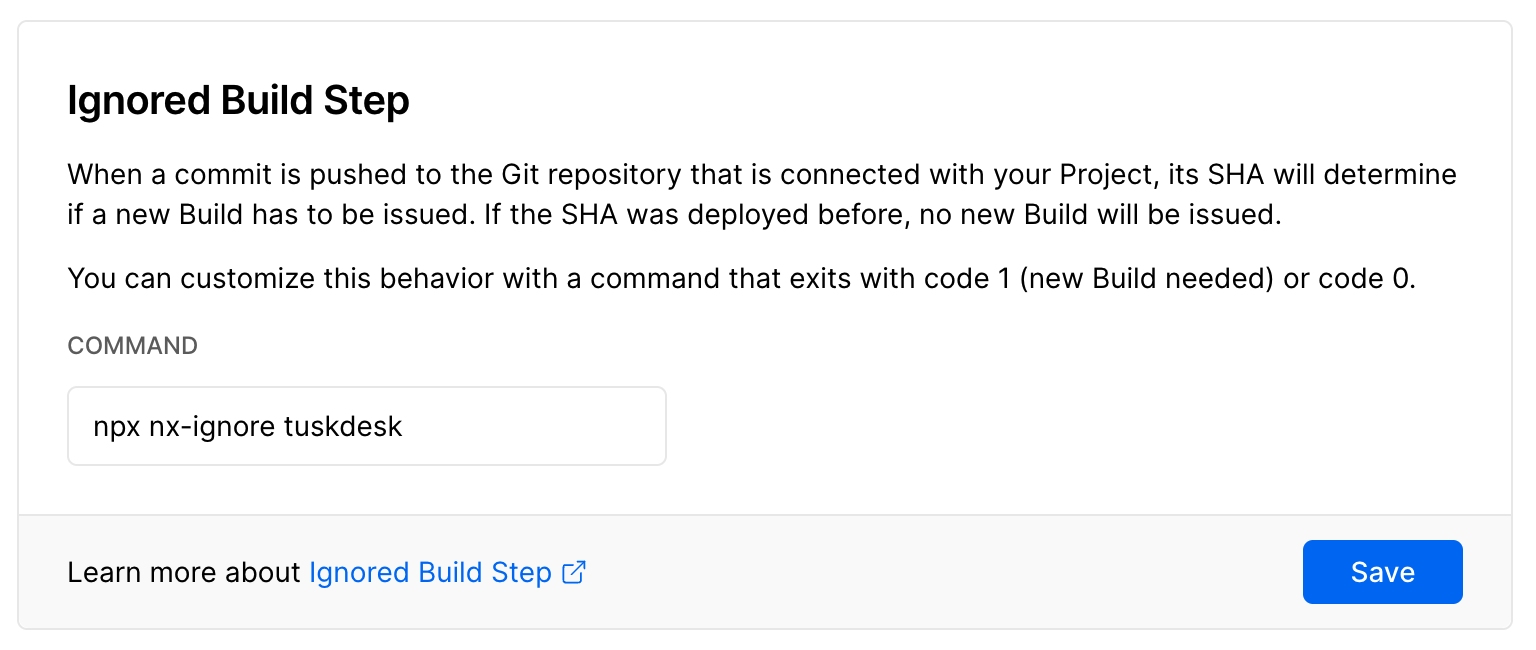
The nx-ignore command uses Nx to detect whether the current commit affects the specified app, and will skip the build if it is not affected.
Next steps
Section titled “Next steps”You can continue to set any additional environment variables that may be appropriate for your projects.